
Docker Deployment
This guide follows the backend README's deployment instructions, with the Compose files, Dockerfiles, and image-publishing configuration under docs/docker/ruoyi-ai checked against the Chinese source guide. It covers MySQL, Redis, Weaviate, MinIO, the backend, both frontends, and the first working conversation.
For a first deployment, use the complete prebuilt-image setup. You only need the backend repository. Java, Maven, Node.js, and the two frontend repositories are not required on the host. To modify code, use source builds or Local Installation.
Version and command conventions
The Chinese guide was checked on September 8, 2026. Its README example uses v3.1.0, so this page pins that tag too; latest may refer to a different version. Keep source and image tags compatible.
Unless a section explicitly changes repositories, run commands from the ruoyi-ai backend repository root. Commands use Compose V2's docker compose. Bash line continuations with \ cannot be pasted directly into PowerShell; use the Windows block or a single-line command.
1. Prerequisites
1.1 Host resources
| Item | Requirement |
|---|---|
| Git | Required to clone the repository. Download Git and verify git --version |
| Docker | A running Engine or Desktop. Windows installation / Linux Engine installation |
| Compose | Compose V2 or a compatible docker compose command |
| Container type | Linux containers |
| Architecture | The image-publishing workflow builds linux/amd64; inspect the target tag's manifest |
| Memory | At least 8 GB allocated to Docker is suggested for an introductory setup; builds, local models, and concurrency need more |
| Disk | Reserve at least 15 GB, plus model files, build caches, and business data |
| Network | Access to GitHub, ghcr.io, and Docker Hub; source builds also need Maven and npm registries |
docker version
docker compose version
docker info --format '{{.OSType}}/{{.Architecture}}'
docker buildx imagetools inspect ghcr.io/ageerle/ruoyi-ai-backend:v3.1.0
If an ARM64 host's target image has no linux/arm64 manifest, use source installation or build the correct architecture rather than relying on emulation in production.
1.2 Ports
The complete-image Compose file publishes:
| Service | Host port | Container port | Purpose |
|---|---|---|---|
| MySQL | 23306 | 3306 | Business database |
| Redis | 26379 | 6379 | Cache and sessions |
| Weaviate | 28080 | 8080 | RAG vector store |
| MinIO API | 29000 | 9000 | Object storage |
| MinIO Console | 29090 | 9090 | Storage administration |
| Backend | 26039 | 6039 | REST and SSE APIs |
| Admin app | 25666 | 5666 | Model, knowledge-base, and agent configuration |
| User app | 25137 | 5137 | Conversations and agents |
Check for conflicts before starting. To change a published port, edit the host port on the left of the colon. Containers still communicate through service names and container ports.
1.3 External services by feature
The application can start without a cloud model key, but containers do not provision model access automatically.
| Capability | Additional setup |
|---|---|
| Local chat | An Ollama chat model, such as qwen2.5:1.5b; this lightweight connectivity example does not establish complex agent performance |
| Agent tool calls | A compatible model with verified tool support; see Agent prerequisites |
| Local RAG | An Ollama embedding model, such as all-minilm:v2, with dimensions matching the knowledge base |
| DeepSeek, Zhipu, Bailian, OpenAI, and similar providers | The provider's API key |
| External apps, search, mail, or multimodal services | Addresses and credentials required by the relevant module |
Missing credentials prevent the corresponding feature from working, rather than preventing the base system from starting. Enter model API Keys directly in ruoyi-admin → Chat Management → Model Management; no Compose environment variables are required for model Keys. Configure other credentials according to their feature guides and keep them out of Git.
2. Complete prebuilt-image deployment
2.1 Prepare configuration
For a new installation, run this where you want to store the project. It works in Bash and PowerShell:
git clone --depth 1 --branch v3.1.0 https://github.com/ageerle/ruoyi-ai.git
cd ruoyi-ai
Copy the environment template. For an existing installation, retain your .env and follow Upgrades and rollback.
cp docs/docker/ruoyi-ai/.env.example docs/docker/ruoyi-ai/.envCopy-Item docs/docker/ruoyi-ai/.env.example docs/docker/ruoyi-ai/.envEdit docs/docker/ruoyi-ai/.env and replace latest with the fixed tag:
IMAGE_OWNER=ageerle
RUIYI_VERSION=v3.1.0| Variable | Meaning |
|---|---|
IMAGE_OWNER | GHCR account owning the images. Official images use ageerle; use your account only after publishing all required images there |
RUIYI_VERSION | Shared tag for the MySQL initialization image, backend, admin app, and user app. The spelling is RUIYI, not RUOYI |
Official GHCR images are public and normally require no docker login. RUIYI_VERSION does not control Redis, Weaviate, or MinIO. The Compose file uses latest for MinIO; pin separately verified dependency versions or digests for production.
Add the missing Weaviate address for v3.1.0
The v3.1.0 complete Compose file does not override the backend's Weaviate address. The image default, 127.0.0.1:28080, points back to the backend container itself. Before starting, add these keys under the existing services.backend.environment in docs/docker/ruoyi-ai/docker-compose-all.yaml, preserving database and Redis configuration:
      VECTOR_STORE_TYPE: weaviate
      VECTOR_STORE_WEAVIATE_PROTOCOL: http
      VECTOR_STORE_WEAVIATE_HOST: weaviate:8080
The main-branch file already contains these keys. Do not duplicate them if present. This Compose correction does not require rebuilding the backend image.
2.2 Validate and start
Check Compose syntax and resolved image names before pulling and starting:
docker compose --env-file docs/docker/ruoyi-ai/.env \
  -f docs/docker/ruoyi-ai/docker-compose-all.yaml config --quiet
docker compose --env-file docs/docker/ruoyi-ai/.env \
  -f docs/docker/ruoyi-ai/docker-compose-all.yaml config --images
docker compose --env-file docs/docker/ruoyi-ai/.env \
  -f docs/docker/ruoyi-ai/docker-compose-all.yaml pull
docker compose --env-file docs/docker/ruoyi-ai/.env \
-f docs/docker/ruoyi-ai/docker-compose-all.yaml up -ddocker compose --env-file docs/docker/ruoyi-ai/.env -f docs/docker/ruoyi-ai/docker-compose-all.yaml config --quiet
docker compose --env-file docs/docker/ruoyi-ai/.env -f docs/docker/ruoyi-ai/docker-compose-all.yaml config --images
docker compose --env-file docs/docker/ruoyi-ai/.env -f docs/docker/ruoyi-ai/docker-compose-all.yaml pull
docker compose --env-file docs/docker/ruoyi-ai/.env -f docs/docker/ruoyi-ai/docker-compose-all.yaml up -dSuccessful config --quiet produces no output. The four ghcr.io/ageerle/ruoyi-ai-* images in config --images should end in :v3.1.0. If they still use latest, check the .env path, spelling, and same-named shell variables, which can override .env. See Docker's interpolation rules.
MySQL imports initialization SQL on its first start, which takes longer than later starts. The backend waits for MySQL's TCP health check. The frontends wait only for the backend container to start, not for Java readiness; inspect backend logs if an initial 502 appears.
2.3 Check readiness
The following single-line commands work in Bash and PowerShell:
docker compose --env-file docs/docker/ruoyi-ai/.env -f docs/docker/ruoyi-ai/docker-compose-all.yaml ps -a
docker compose --env-file docs/docker/ruoyi-ai/.env -f docs/docker/ruoyi-ai/docker-compose-all.yaml logs --tail=200 mysql backend
Expected results:
- MySQL and Redis report healthy.
- The backend stays running and logs successful application startup.
- Both frontend containers remain Up.
- The backend tenant-list endpoint returns a normal business response.
Up means a process is alive, not necessarily ready. Check the backend response, Weaviate readiness, and MinIO liveness separately. The tenant endpoint is not a dedicated health endpoint; inspect its response body too.
PowerShell:
$tenantResponse = Invoke-WebRequest http://127.0.0.1:26039/auth/tenant/list
$tenantResponse.StatusCode
$tenantResponse.Content
(Invoke-WebRequest http://127.0.0.1:28080/v1/.well-known/ready).StatusCode
(Invoke-WebRequest http://127.0.0.1:29000/minio/health/live).StatusCode
Linux/macOS:
curl -fsS http://127.0.0.1:26039/auth/tenant/list
curl -fsS http://127.0.0.1:28080/v1/.well-known/ready
curl -fsS http://127.0.0.1:29000/minio/health/live
2.4 Log in
For a remote deployment, replace 127.0.0.1 with the server address and permit the application ports in its firewall and cloud security group.
| Application | Address | Initial account |
|---|---|---|
| Admin app | http://127.0.0.1:25666 | admin / admin123 |
| User app | http://127.0.0.1:25137 | admin / admin123 |
| MinIO Console | http://127.0.0.1:29090 | ruoyi / ruoyi123 |
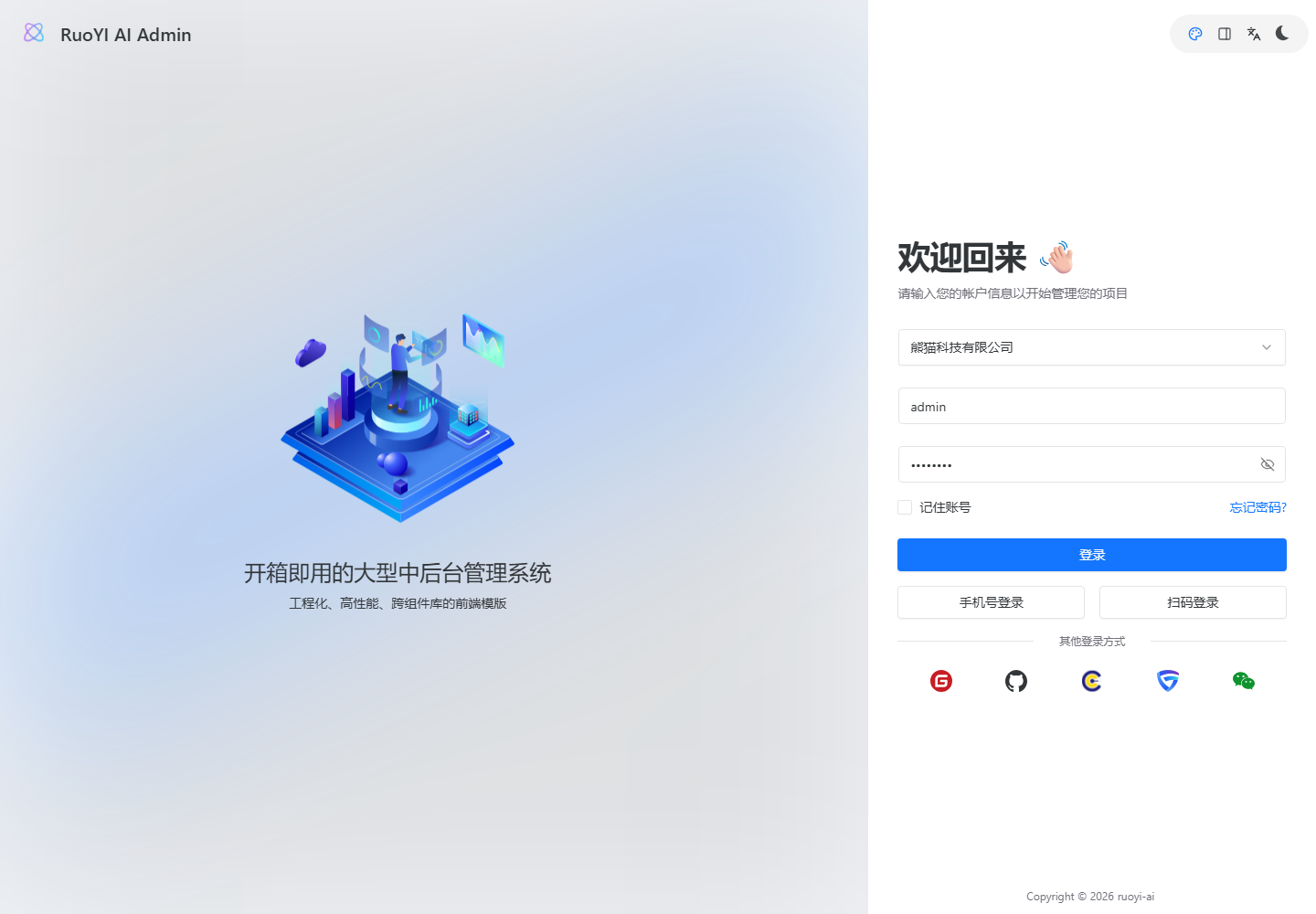
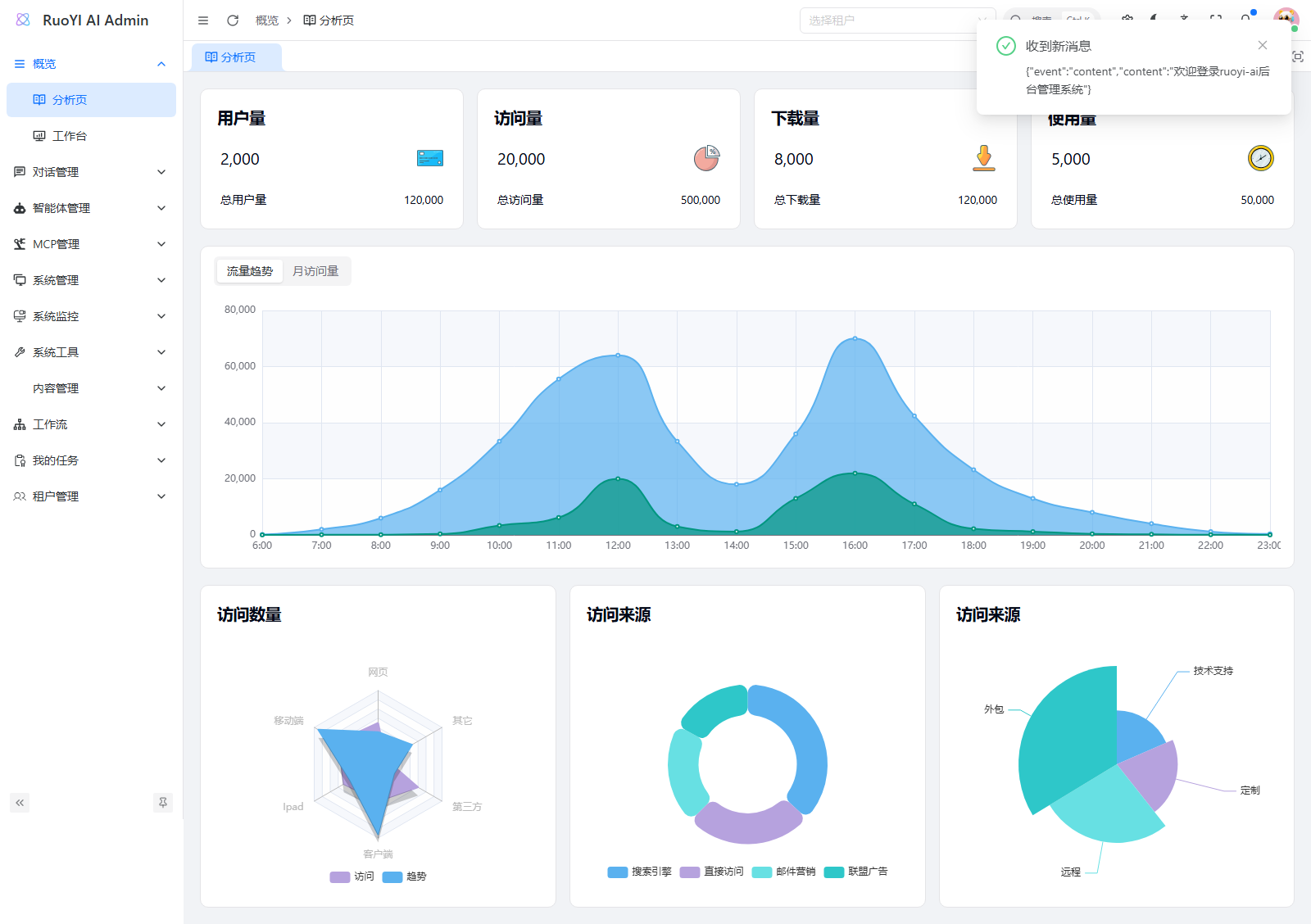
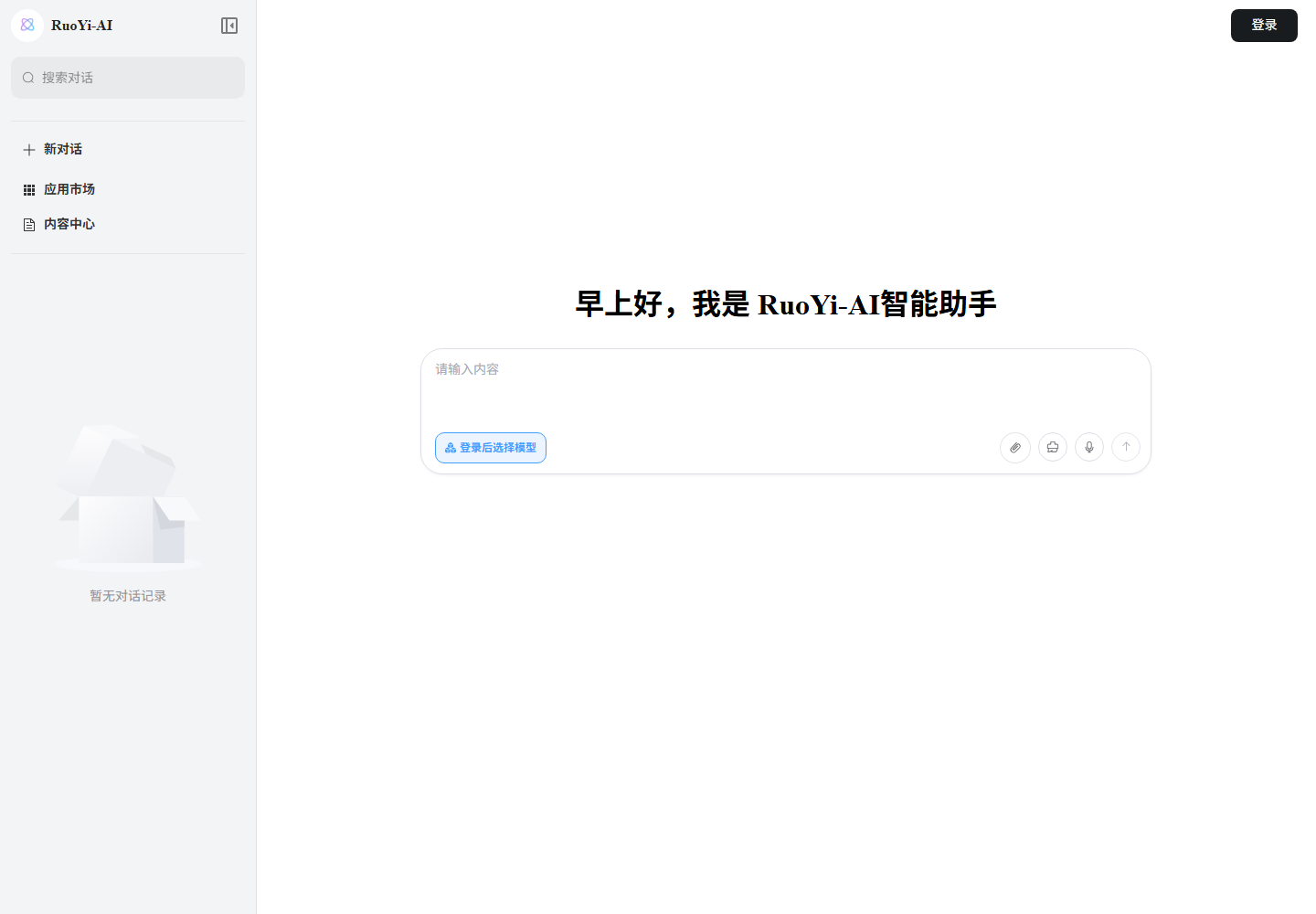
Menus and styling depend on your deployed version. Change initial passwords after first login. The backend root URL has no application home page; this alone does not indicate failure.
3. Initial application configuration
Configure models, storage, and agents after the containers are ready. Verify ordinary chat first, then add retrieval and tools to keep troubleshooting manageable.
3.1 Set MinIO as default storage
Open System Management → File Configuration in the admin app and add or edit MinIO:
| Field | Value with a containerized backend |
|---|---|
| endpoint | http://minio:9000 for backend uploads |
| accessKey | ruoyi |
| secretKey | ruoyi123 |
| bucket | For example, ruoyi |
| Default | Yes |
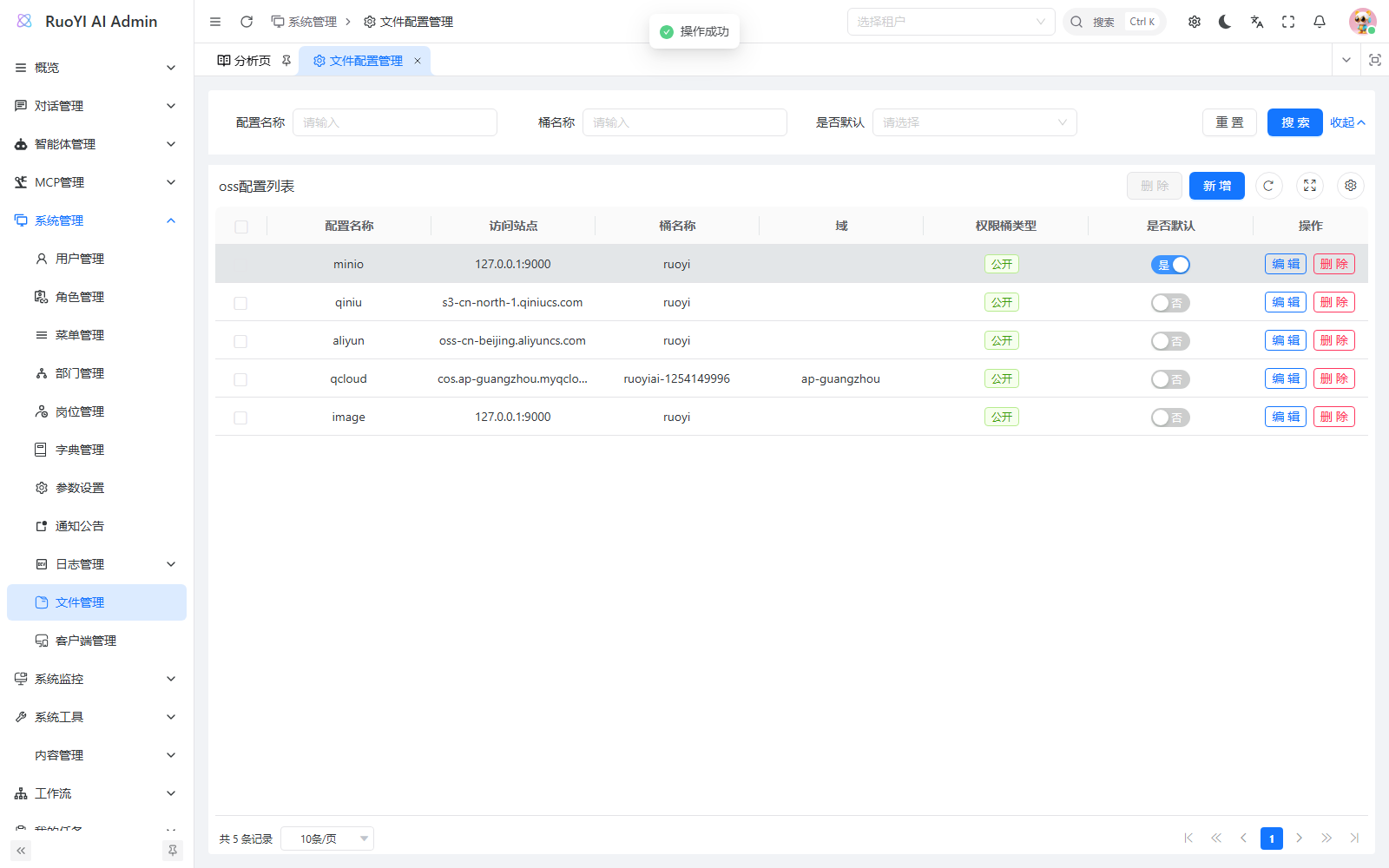
minio:9000 is internal to Docker and cannot be opened directly by a browser. If download URLs are generated from the endpoint, use an address reachable by both the browser and backend, such as a reverse-proxied https://files.example.com. Inside the backend container, 127.0.0.1:29000 points to that container, not the host's MinIO port.
Update the keys if you changed MinIO credentials. Upload a small file and open its returned URL in the browser; a successful upload does not establish that the download address is reachable.
3.2 Connect local Ollama
The complete Compose setup does not include Ollama. Install it on the host or join an Ollama container to the Compose network. Find the actual network name:
docker network lsFor a network named ruoyi-ai_ruoyi-net:
docker run -d --name ruoyi-ai-ollama --restart unless-stopped --network ruoyi-ai_ruoyi-net -v ollama-data:/root/.ollama ollama/ollama:latest
docker exec ruoyi-ai-ollama ollama pull qwen2.5:1.5b
docker exec ruoyi-ai-ollama ollama pull all-minilm:v2
The backend can reach this container at http://ruoyi-ai-ollama:11434; use this address in the model configuration. Leave the Key empty for Ollama without authentication. Authenticated gateways need adapter support. See Model Management and Knowledge Base for chat and embedding configuration.
For Ollama running on the host:
- Docker Desktop can usually use
http://host.docker.internal:11434. - Linux Engine needs an explicit host-gateway configuration, or an Ollama container on the same network.
- Do not use
http://127.0.0.1:11434from the backend container.
3.3 Verify the complete feature path
- Add a provider and callable chat model, then test the model.
- Add an embedding model and record its actual dimensions.
- Create a Weaviate knowledge base with matching dimensions.
- Upload a small TXT or Markdown file and wait for parsing to complete.
- Test retrieval using a distinctive phrase from that file.
- Create an agent with the chat model; bind the verified knowledge base if retrieval is needed.
- Select the agent in the user app and send a minimal test question.
The feature guides include actual screenshots and diagnostic steps. Validate each layer before combining agents, knowledge, and workflows.
3.4 How environment variables reach the container
.env supplies Compose interpolation. It does not automatically inject every key into the backend. The template declares only image owner and version. Adding passwords, AGENT_ALLOWED_TABLES, or cloud keys there does not mean the application receives them.
For example, define the allowlist in .env, then explicitly reference it under services.backend.environment:
AGENT_ALLOWED_TABLES: ${AGENT_ALLOWED_TABLES:-}After changing container environment configuration, run docker compose ... up -d backend with the same file arguments to recreate it. restart backend does not reload container environment variables. See SQL data-source setup for the complete configuration. Avoid sharing full docker compose config output containing secrets.
4. Source builds and separate deployment
Separate builds require explicit Compose paths, correct build contexts, and shared Docker networking. A bare docker compose command from an arbitrary repository root is insufficient.
Choose one deployment method
The source and complete-image setups reuse ruoyi-ai-* container names, some ports, and default volumes. Do not run both together or treat switching between them as an isolated test environment. In particular, do not share a MySQL data volume across incompatible versions. Back up an existing deployment and plan its container, network, volume, and port migration.
4.1 Prepare source and build the backend
Use compatible backend and frontend revisions. To reproduce a release, use the corresponding tags in all three repositories, following the release workflow. For development, record each commit. If a frontend lacks the intended tag, establish its compatible revision rather than assuming a branch is a release tag.
The backend Dockerfile compiles with Maven and JDK 17 inside the container and runs the prod profile. Each frontend builds in its own Dockerfile. Host compilation tools are unnecessary, but dependency registries must be reachable.
In docs/docker/ruoyi-ai/docker-compose.yaml, backend.build.context is . and resolves to the Compose directory, although the Dockerfile needs the repository-root pom.xml. Create docker-compose.source.override.yaml beside that Compose file:
services:
  backend:
    build:
      context: ../../..
      dockerfile: docs/docker/ruoyi-ai/Dockerfile.backend
    environment:
      VECTOR_STORE_TYPE: weaviate
      VECTOR_STORE_WEAVIATE_PROTOCOL: http
      VECTOR_STORE_WEAVIATE_HOST: weaviate:8080
From the backend repository root:
docker compose -f docs/docker/ruoyi-ai/docker-compose.yaml -f docs/docker/ruoyi-ai/docker-compose.source.override.yaml config --quiet
docker compose -f docs/docker/ruoyi-ai/docker-compose.yaml -f docs/docker/ruoyi-ai/docker-compose.source.override.yaml up -d --build
docker compose -f docs/docker/ruoyi-ai/docker-compose.yaml -f docs/docker/ruoyi-ai/docker-compose.source.override.yaml logs --tail=200 backend
This builds the backend and starts its four infrastructure services. Retain both -f arguments for subsequent up, logs, and down operations. Relative paths resolve from the first Compose file's directory.
4.2 Build the admin app
Prepare the separate admin repository. From ruoyi-admin's repository root:
docker compose -f apps/web-antd/docker-compose.yml config --quiet
docker compose -f apps/web-antd/docker-compose.yml up -d --build
Its Compose file joins external network ruoyi-ai_ruoyi-net and proxies to ruoyi-ai-backend:6039. Deploy the backend first. If its network name differs, adjust networks.ruoyi-net.name to the actual network.
Open http://SERVER_IP:5666 after the build. For dependency failures, inspect the earliest build error, required package-manager version, and lockfile. Compare .github/workflows/publish-images.yml in the backend repository: the release workflow adjusts frontend build-script permissions before installing dependencies, which a direct local build does not do automatically. If scripts are ignored, review the scripts and permissions required by that version. Keep the lockfile intact.
4.3 Build the user app
Prepare the separate user repository. Its standalone Compose file initially points to host.docker.internal:26039. To communicate directly with the backend container, edit docker-compose.yml at the ruoyi-web root:
- Set
services.frontend.environment.UPSTREAM_URLtohttp://ruoyi-ai-backend:6039. - Replace the bottom
networks.ruoyi-netsection, including the originaldriver: bridge, with this external-network definition:
networks:
  ruoyi-net:
    external: true
    name: ruoyi-ai_ruoyi-net
Keep the other settings and use the actual backend network name. Run from the user repository root:
docker compose -f docker-compose.yml config --quiet
docker compose -f docker-compose.yml up -d --build
Open http://SERVER_IP:5137. These source-build instructions were checked against repository configuration; the Chinese guide's validation did not perform complete image builds of all three projects.
4.4 Port differences between the methods
| Service | Complete-image host port | Source-Compose host port |
|---|---|---|
| Admin app | 25666 | 5666 |
| User app | 25137 | 5137 |
| Backend | 26039 | 26039 |
| MySQL | 23306 | 23306 |
| Redis | 26379 | 6379 |
| Weaviate | 28080 | 28080 |
| MinIO API / Console | 29000 / 29090 | 9000 / 9090 |
Java listens on container port 6039, but source Compose still publishes 26039:6039. This table follows the actual Compose mapping, which differs from the README's separate-deployment port table.
4.5 Run only infrastructure in containers
For IDE debugging, start only the required dependencies from the backend repository root:
docker compose -f docs/docker/ruoyi-ai/docker-compose.yaml up -d redis weaviate minioFollow Local Installation for host MySQL and the backend and frontend processes. A host backend uses published ports, such as 127.0.0.1:6379 and 127.0.0.1:28080, rather than Docker-only service names such as redis and weaviate.
5. Database initialization and migrations
Complete-image deployment uses ruoyi-ai-mysql with bundled initialization scripts. Source deployment mounts them. Both use docs/script/sql/ruoyi-ai.sql and snail_job_mysql.sql to initialize business and scheduler databases.
MySQL executes /docker-entrypoint-initdb.d only when the data directory is empty. With an existing mysql-data volume, restarting or updating images does not apply migrations under docs/script/sql/update or reset account passwords.
Before an upgrade:
- Read the target release notes.
- Stop business writes during a maintenance window and back up
ruoyi-ai-agent, plussnail_jobif used. - Apply missing migration scripts in version order.
- Start the new backend and inspect its logs.
For a complete-image deployment, run this backup from the backend repository root. It lets mysqldump create a timestamped file inside the container, then copies that file to the host, avoiding PowerShell text-redirection encoding changes:
docker_backup_name="ruoyi-ai-$(date +%Y%m%d-%H%M%S).sql"
if docker compose --env-file docs/docker/ruoyi-ai/.env -f docs/docker/ruoyi-ai/docker-compose-all.yaml exec -T mysql sh -c 'MYSQL_PWD=$MYSQL_ROOT_PASSWORD exec mysqldump -uroot --single-transaction --routines --events --databases ruoyi-ai-agent snail_job --result-file="$1"' sh "/tmp/$docker_backup_name"; then
  docker compose --env-file docs/docker/ruoyi-ai/.env -f docs/docker/ruoyi-ai/docker-compose-all.yaml cp "mysql:/tmp/$docker_backup_name" "./$docker_backup_name"
else
  printf '%s\n' '数据库导出失败,未复制备份' >&2
fi$dockerBackupName = "ruoyi-ai-$(Get-Date -Format 'yyyyMMdd-HHmmss').sql"
docker compose --env-file docs/docker/ruoyi-ai/.env -f docs/docker/ruoyi-ai/docker-compose-all.yaml exec -T mysql sh -c 'MYSQL_PWD=$MYSQL_ROOT_PASSWORD exec mysqldump -uroot --single-transaction --routines --events --databases ruoyi-ai-agent snail_job --result-file="$1"' sh "/tmp/$dockerBackupName"
if ($LASTEXITCODE -ne 0) { throw '数据库导出失败,未复制备份' }
docker compose --env-file docs/docker/ruoyi-ai/.env -f docs/docker/ruoyi-ai/docker-compose-all.yaml cp "mysql:/tmp/$dockerBackupName" "./$dockerBackupName"
if ($LASTEXITCODE -ne 0) { throw '备份复制失败,请检查目标路径和磁盘空间' }Confirm both export and copy succeeded and the host file is nonempty. The container's MYSQL_ROOT_PASSWORD must match the database's real root password. Omit snail_job if your installation has no such database. Store backups separately from Git and avoid overwriting your only copy.
Choose migrations for the difference between your source and target versions, connect through SERVER_IP:23306, and record execution results. Do not reimport complete initialization SQL during upgrades: snail_job_mysql.sql, for example, includes statements that drop and recreate its database.
Verify restoration in an isolated environment, including tables and key records. SQL backups do not include MinIO attachments or Weaviate vectors; protect the persistent volumes below as well.
6. Stop, upgrade, and roll back
6.1 Persistent data
| Compose volume | Contents |
|---|---|
mysql-data | MySQL /var/lib/mysql |
redis-data | Redis persistence in /data |
weaviate-data | Vectors and indexes in /var/lib/weaviate |
minio-data | Objects in /data |
logs-data | Backend logs in /ruoyi/server/logs |
upload-data | Uploaded files in /ruoyi/upload |
Actual names usually include a project prefix, such as ruoyi-ai_mysql-data. Inspect docker volume ls. Include custom mounts and model volumes in backups, and keep backups and configuration in a separate location.
6.2 Stop and resume
Stop while preserving data:
docker compose --env-file docs/docker/ruoyi-ai/.env -f docs/docker/ruoyi-ai/docker-compose-all.yaml downResume with up -d using the same arguments. For a temporary pause of existing containers, use stop followed by start.
Volume deletion is not a restart
Ordinary stops, restarts, and upgrades do not need docker compose down -v. That option deletes deployment volumes, potentially removing databases, vectors, attachments, uploads, and logs. Do not use docker volume prune as a speculative startup fix.
6.3 Upgrade to a fixed version
- Read the target README, release notes, and migration scripts. Keep the existing
.env, Compose files, custom configuration, and image versions. - Back up databases, vectors, and important objects in a maintenance window, and verify restoration.
- Merge target Compose changes while preserving your credentials, ports, networks, and mounts. Set
RUIYI_VERSIONto the published target tag. - Check
config --imagesand inspect target architectures usingdocker buildx imagetools inspect. Apply required migrations, then update services:
docker compose --env-file docs/docker/ruoyi-ai/.env -f docs/docker/ruoyi-ai/docker-compose-all.yaml config --images
docker compose --env-file docs/docker/ruoyi-ai/.env -f docs/docker/ruoyi-ai/docker-compose-all.yaml pull
docker compose --env-file docs/docker/ruoyi-ai/.env -f docs/docker/ruoyi-ai/docker-compose-all.yaml up -d
docker compose --env-file docs/docker/ruoyi-ai/.env -f docs/docker/ruoyi-ai/docker-compose-all.yaml ps -a
docker compose --env-file docs/docker/ruoyi-ai/.env -f docs/docker/ruoyi-ai/docker-compose-all.yaml logs --tail=200 backend
Verify login, ordinary chat, uploads, and the knowledge or agent features you use. pull only downloads images; up -d updates containers.
Rollback must account for both application code and data. If the database remains compatible, restore the previous tag and configuration and run up -d. An incompatible migration needs the previously tested database and related-data recovery procedure. Do not give an existing MySQL data directory to an arbitrarily older version.
7. Troubleshooting
7.1 MySQL repeatedly restarts
Inspect logs:
docker logs --tail=200 ruoyi-ai-mysqlCannot start server: cannot load from data dictionary built by a newer version, or an unsupported-downgrade message, means a newer MySQL version created the volume. Use a compatible version. To downgrade, export a logical backup using the original version and import it into a new empty volume.
7.2 SQL changes have no effect
Initialization scripts run only against an empty data directory. Apply the correct incremental migrations to an existing database and record their versions.
7.3 The backend cannot reach infrastructure
Use Compose service names and container ports:
| Service | Internal address |
|---|---|
| MySQL | mysql:3306 |
| Redis | redis:6379 |
| Weaviate | http://weaviate:8080 |
| MinIO | http://minio:9000 |
localhost and 127.0.0.1 refer to the current container.
7.4 The frontend returns 502
Complete-image service names are admin-frontend and web-frontend; container names are ruoyi-ai-admin and ruoyi-ai-web. Use service names with docker compose logs, and container names with docker logs:
docker compose --env-file docs/docker/ruoyi-ai/.env -f docs/docker/ruoyi-ai/docker-compose-all.yaml logs --tail=200 backend admin-frontend web-frontend
docker exec ruoyi-ai-admin wget -qO- http://backend:6039/auth/tenant/list
Fix backend readiness and database or Redis failures first. Then check proxy targets: admin uses UPSTREAM_HOST: backend:6039 without a scheme, while Web uses UPSTREAM_URL: http://backend:6039 with one. Changing the host's backend port does not change these internal targets.
7.5 Uploads succeed but parsing or retrieval fails
Check, in order:
- One working default OSS configuration.
- Backend access to the MinIO endpoint.
- HTTP 200 from Weaviate readiness.
- A callable embedding model.
- Matching embedding and knowledge-base dimensions.
- Completed parsing before retrieval testing.
7.6 SQL agent tools fail
Check the deployed version, SQL data source, and whether AGENT_ALLOWED_TABLES reaches the backend container. Use a read-only database account. An empty allowlist intentionally rejects queries.
The companion corrections in Agent Management also require the named agent data source. That page explains its local pre-release scope. Public v3.1.0 images do not include arbitrary working-tree changes; build images containing those fixes before validating them.
7.7 Image pulls fail
Use config --images to verify the owner, names, and tags.
| Error | Check |
|---|---|
manifest unknown / not found | The tag is published for all four images; a source branch name is not necessarily an image tag |
denied / unauthorized | Wrong IMAGE_OWNER or a private package. Official public images normally need no login; private packages require pull access |
no matching manifest | Image architecture support |
| Timeout, TLS, or DNS errors | Docker daemon network, proxy, DNS, and registry access; browser connectivity does not prove daemon connectivity |
Cannot connect to the Docker daemon | Engine/Desktop is running and the terminal uses the correct Docker context |
7.8 Port or container conflicts, or apparently empty data
Inspect existing containers with docker ps -a for another deployment. Change only the published host port and update browser addresses, firewalls, and external file domains accordingly.
Fixed container_name values mean adding -p alone does not resolve name conflicts. A different Compose project name also changes default volume names and may attach new empty volumes. Compare existing mounts and docker volume ls before assuming data was lost.
7.9 Changed credentials or configuration still use old values
Ensure Compose environment references the variable, then run up -d with the same --env-file and -f arguments. restart retains the old container environment.
MYSQL_ROOT_PASSWORD initializes an empty database only. With existing data, change the real database password through database account management, then update backend credentials and health checks. Update file configuration when changing MinIO credentials too.
7.10 Upload limits or delayed chat text
A 413 can come from the outer reverse proxy, frontend Nginx, or backend multipart limits. Check each layer. The main-branch complete Compose file sets backend limits of 600MB per file and 620MB per request; v3.1.0 does not include them. Configure limits for your resources and version.
For delayed text despite an ongoing response, check SSE buffering and proxy read timeouts. Inspect response status and Content-Type before deciding whether the delay comes from proxying or the model.
8. Minimum production configuration
The demo Compose defaults need deployment-specific credentials and network exposure:
| Setting | Update together |
|---|---|
| MySQL password | Actual account, mysql.environment.MYSQL_ROOT_PASSWORD, backend SPRING_DATASOURCE_DYNAMIC_DATASOURCE_MASTER_PASSWORD, and the health check's -proot |
| MinIO credentials | MINIO_ROOT_USER, MINIO_ROOT_PASSWORD, and the default OSS accessKey / secretKey |
| Admin password | Change it in the application after login, not in .env |
| Infrastructure ports | Remove unneeded ports, or bind local administration to loopback, such as 127.0.0.1:23306:3306. Containers still use mysql:3306 |
Also:
- Keep MySQL, Redis, Weaviate, and MinIO Console off the public internet.
- Add authentication and network isolation to the anonymous-access Weaviate example.
- Use HTTPS reverse proxies for the admin app, user app, backend, and file domain.
- Manage cloud keys, SMTP codes, and database passwords through secrets or environment configuration outside the Compose repository.
- Use the minimum SQL table allowlist.
- Back up and restore-test MySQL, MinIO, Weaviate, and upload volumes.
- Pin upgrade versions, apply migrations, and retain rollback backups.
9. Configuration source map
Paths are relative to the relevant repository. Inspect your deployed tag rather than assuming main-branch behavior applies to an older image.
| Repository / file | Purpose |
|---|---|
ruoyi-ai/README_ZH.md | Maintained deployment entry and example release |
ruoyi-ai/docs/docker/ruoyi-ai/.env.example | Image owner and tag template |
ruoyi-ai/docs/docker/ruoyi-ai/docker-compose-all.yaml | Complete images, ports, environment, volumes, and dependencies |
ruoyi-ai/docs/docker/ruoyi-ai/docker-compose.yaml | Backend source build and infrastructure |
ruoyi-ai/docs/docker/ruoyi-ai/Dockerfile.backend | Maven build, JDK runtime, startup arguments |
ruoyi-ai/docs/docker/ruoyi-ai/Dockerfile.mysql | MySQL version and initialization scripts |
ruoyi-ai/docs/script/sql/, docs/script/sql/update/ | Initialization and migrations |
ruoyi-ai/ruoyi-admin/src/main/resources/application.yml, application-prod.yml | Defaults and production profile, overridable through container environment |
ruoyi-ai/.github/workflows/publish-images.yml | Build contexts, tags, and architectures for four GHCR images |
ruoyi-admin/apps/web-antd/docker-compose.yml, Dockerfile | Standalone admin build and proxy configuration |
ruoyi-web/docker-compose.yml, Dockerfile.frontend | Standalone user build and UPSTREAM_URL |
Continue with Model Management, Knowledge Base, Tools, Workflows, or Agents.