
Multimodal and media capabilities
RuoYi AI provides image generation, text-to-speech, and video generation APIs, with a Media Workspace in the user app for choosing models, entering parameters, and viewing results. This page covers capabilities and concepts first, followed by model configuration, workspace usage, and API checks.
Capabilities
| Capability | Input and result | Entry point |
|---|---|---|
| Image generation | Generate an image from text, with model-dependent size and seed options. | Image generation or POST /media/image. |
| Text-to-speech | Generate audio from text, with model-dependent voice, format, and speed. | Speech synthesis or POST /media/speech. |
| Video generation | Submit a scene and camera description, then query the generated video. | Video generation or POST /media/video. |
| Task lookup and previews | Check asynchronous progress, preview images, play audio/video, and save results or task IDs. | Result panel, Current tasks, and Query existing task. |
Configure an enabled atlas provider, media models, and the actual API Key in the admin console before using Atlas Cloud. See Credential requirements and Media examples. Optional parameters and query methods also depend on the provider.
Image attachments in ordinary chat currently support only local previews, without image understanding or OCR. The workspace does not yet offer reference-image uploads or image editing. See Chat attachments and extension.
Media examples
The Media Workspace previews generated images, plays audio and video, and retrieves existing outputs by task ID. These examples use Atlas Cloud models.
| Capability | Example model | Output |
|---|---|---|
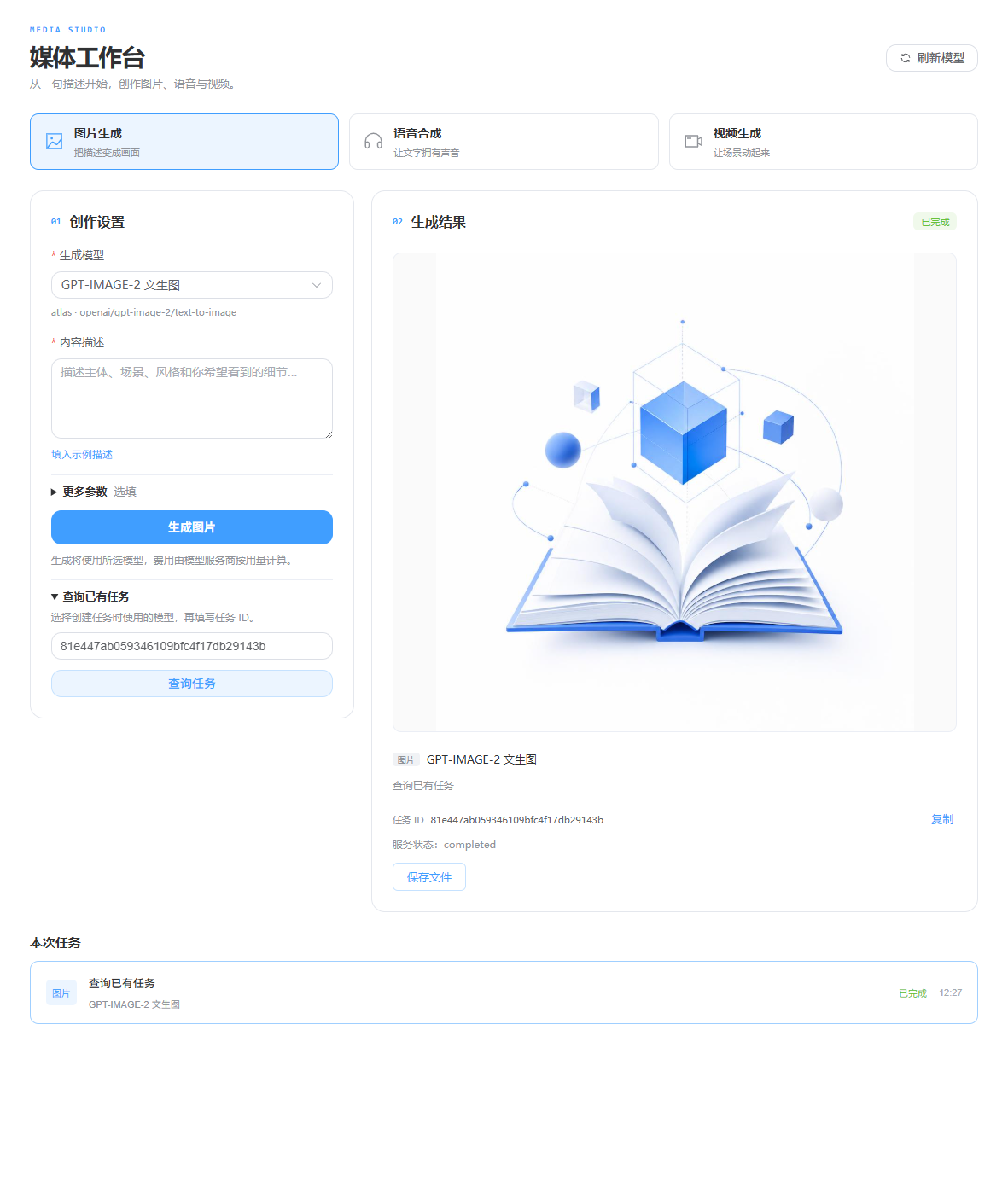
| Image generation | openai/gpt-image-2/text-to-image | Image preview and file download; the example is 1024×1024 |
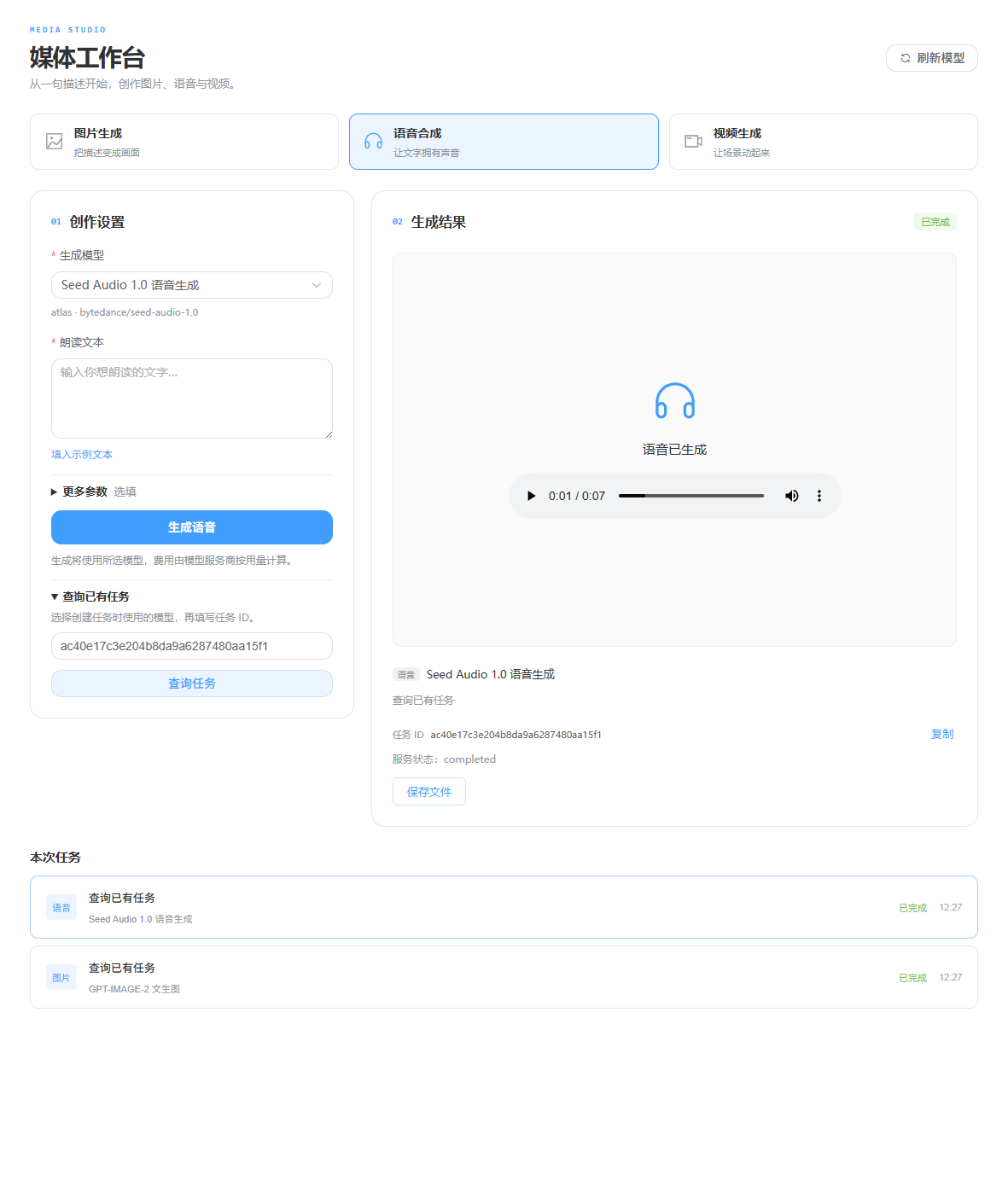
| Text-to-speech | bytedance/seed-audio-1.0 | MP3 player with playback, pause, and seeking |
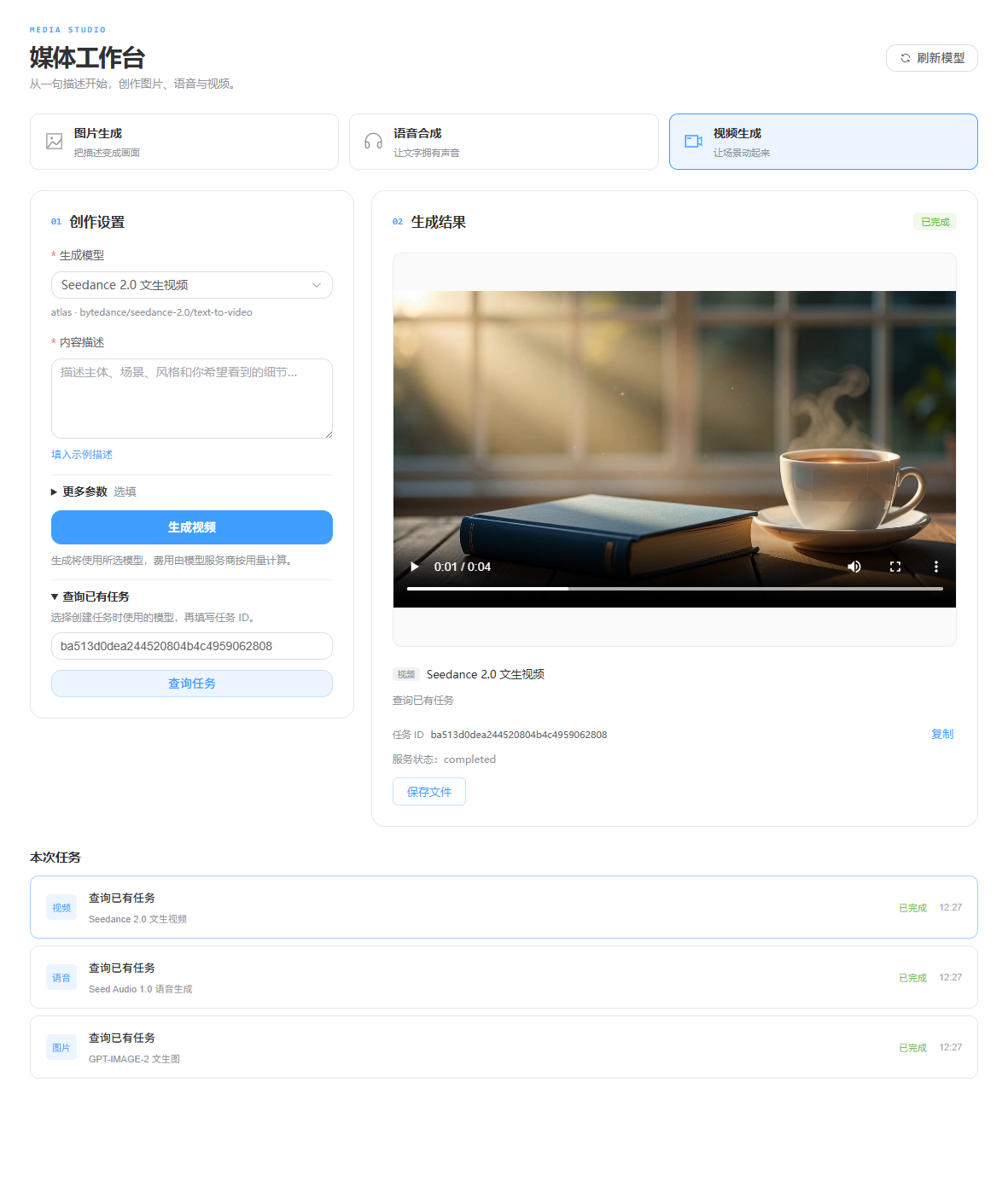
| Video generation | bytedance/seedance-2.0/text-to-video | Video player with playback, pause, seeking, and fullscreen |
Image generation
The completed image appears in the result panel. Choose Save File to download it.
Text-to-speech
Once the audio loads, the player shows its duration and supports playback, pause, and seeking.
Video generation
Once the task completes and the resource loads, play the video in the result panel or open it fullscreen.
Query an existing task
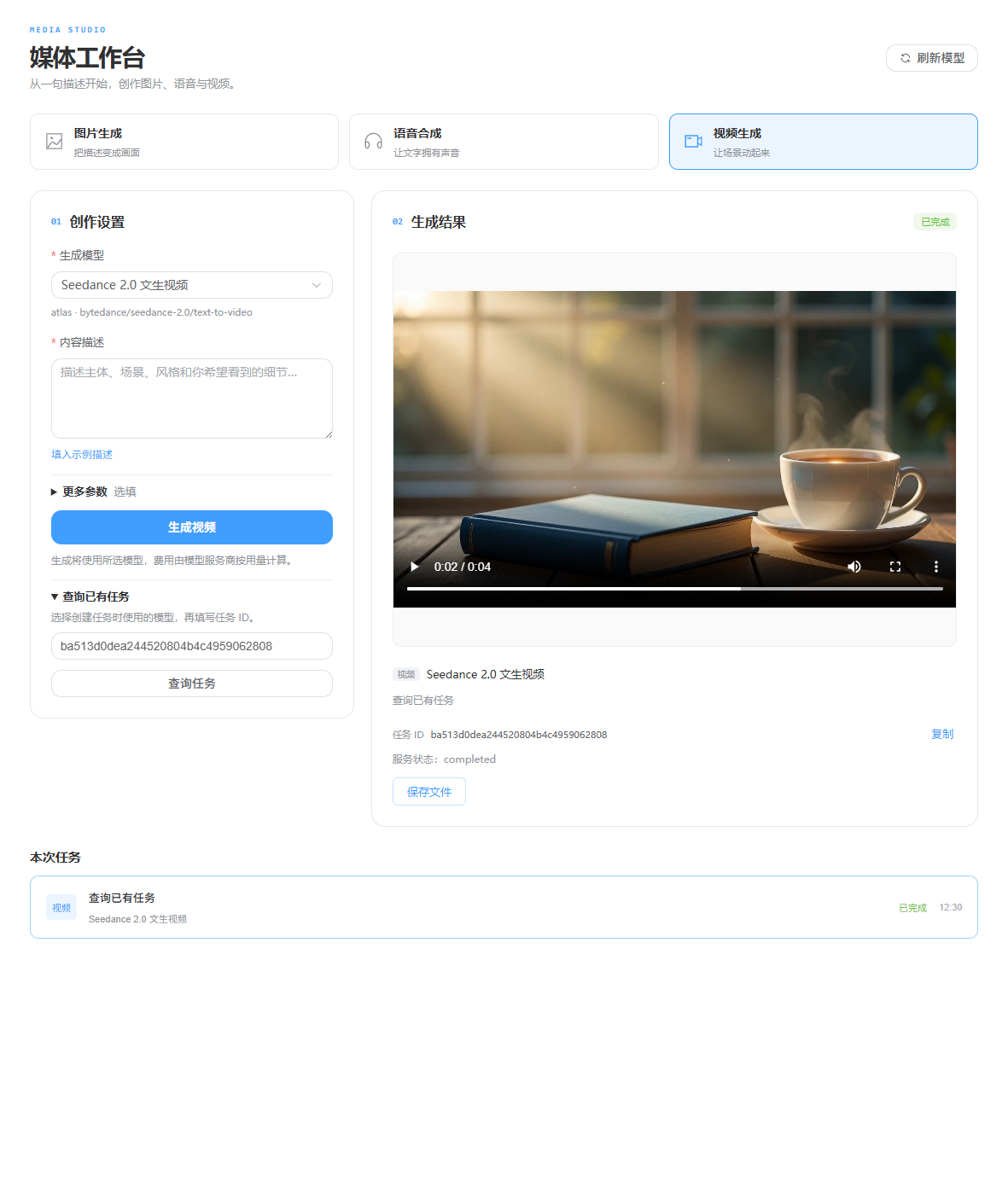
Choose the media type and model used to create the task, expand Query Existing Task, enter the task ID, and select Query Task. Completed output loads into the result panel.
Resource URLs can expire. Save files you want to keep. See content delivery for size and resource-host limits.
Multimodality and media generation
Multimodality means processing information in forms such as text, images, audio, and video. It includes understanding an input image as well as generating media from text. This guide focuses on the latter: media generation.
| Concept | Meaning here |
|---|---|
| Provider and model | The provider selects the service and protocol; the model name selects a specific model on that service. |
| Model category | image, audio, and video determine where a model appears. The category must match its actual capability. |
| Synchronous result | One request returns a resource that can be displayed immediately. |
| Asynchronous task | The initial response returns a task ID; generation continues on the server and status queries retrieve the result. |
For first use, prepare the provider and credentials, configure a model, submit through the workspace, then inspect or query the result. Sections 1–3 cover setup; section 4 covers the workspace, and section 5 covers API debugging.
1. Start the admin console and find media models
Start the backend using Local installation, then start the admin console:
Set-Location D:\Project\github\ruoyi-admin
pnpm install
pnpm run dev:antd
Replace the path and skip dependency installation if already complete. Open the terminal's URL, normally http://localhost:5666, and go to Chat Management → Model Management. The admin proxy defaults to http://127.0.0.1:6039; the API examples use temporary port 6049. See Temporary port.
Search for the model you intend to use before adding a new record. This existing Atlas Cloud model illustrates the fields:
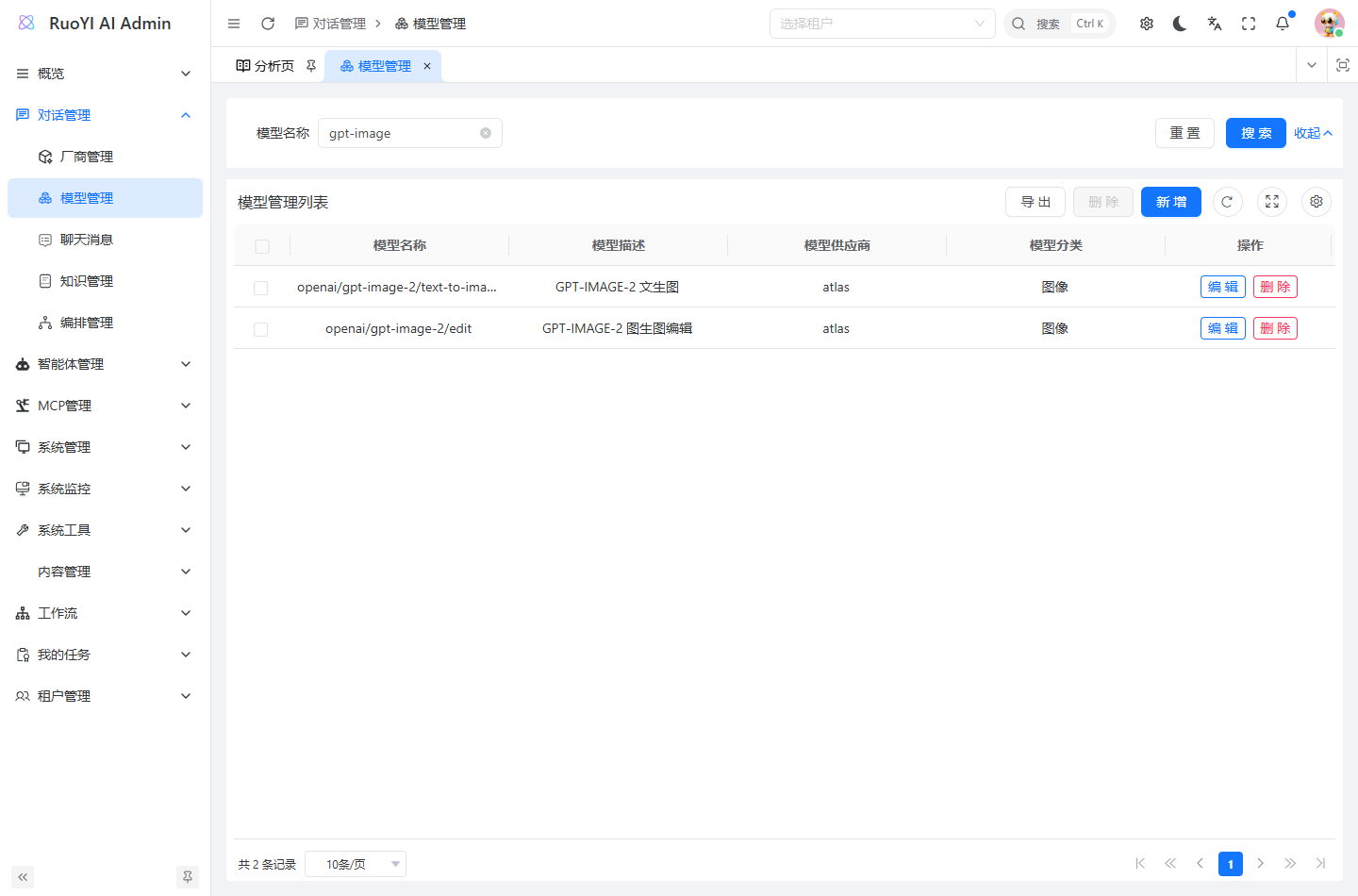
Although the model name starts with openai/, its provider is atlas, so the backend uses the Atlas adapter. The provider selects the service; the model name selects a model on that service. An image-editing model in the list does not mean the public generation API accepts reference images.
2. Check provider and credential requirements
2.1 Inspect the service in Provider Management
Open Chat Management → Provider Management and check the code and enabled status. Model forms load enabled providers only, and disabling a provider rejects new calls for existing models too. See Provider configuration.
These are the adapter mappings currently in code; credential readiness must also be checked:
| Code | Existing media implementations | Considerations |
|---|---|---|
openai | Images, speech, video creation and lookup | The service must implement media endpoints, not just compatible chat. |
atlas | Images, audio, video, asynchronous lookup | Use the complete Atlas model ID. |
Tongyiwanx | Tongyi Wanxiang text-to-image | Case-sensitive code; uses the Wanxiang SDK. |
custom_api | Factory fallback to OpenAI media | Fallback and credential validation currently do not match; custom chat configuration cannot be reused directly. |
custom_anthropic has no media-generation adapter. Working chat providers such as DeepSeek, PPIO, or Ollama do not imply media support.
If Atlas Cloud is missing, create and enable the atlas provider in the same tenant before adding a model.
2.2 Requirements before calling a provider
In ruoyi-admin Model Management, select the enabled atlas provider, set the base URL to https://api.atlascloud.ai/v1, and enter the actual Atlas API Key. Each media model uses its saved Key; no environment variable is required.
For another provider, use its implemented media adapter, service URL and API Key. Saving a model does not by itself confirm remote model availability.
2.3 Start on a temporary port
Configure the model Key in the admin console. To start the backend, run:
Set-Location D:\Project\github\ruoyi-ai
mvn -pl ruoyi-admin -am package -Dmaven.test.skip=true
java -jar ruoyi-admin/target/ruoyi-admin.jar --server.port=6049 --spring.data.redis.database=14 --snail-job.enabled=false
Configure the MySQL connection and Redis database for your environment. The example uses Redis DB 14 to isolate its cache; confirm that database is available. In another terminal:
Set-Location D:\Project\github\ruoyi-web
$env:VITE_API_URL = 'http://127.0.0.1:6049'
pnpm dev --host 127.0.0.1 --port 5180 --strictPort
Open the local workspace. This leaves the default backend port unchanged. If also running the admin app, point its development proxy at 6049.
3. Configure categories and models
3.1 Check model categories
Under System Management → Dictionary Management, find Model Category, type chat_model_category:
| Label | Value | API |
|---|---|---|
| Image | image | POST /media/image |
| Speech / Audio | audio | POST /media/speech |
| Video | video | POST /media/video, GET /media/video |
Add missing entries, refresh the dictionary cache, and reopen the model form. The current form also supplies these three categories when dictionary entries are missing, but labels and ordering should be maintained in the dictionary. See Model category dictionary.
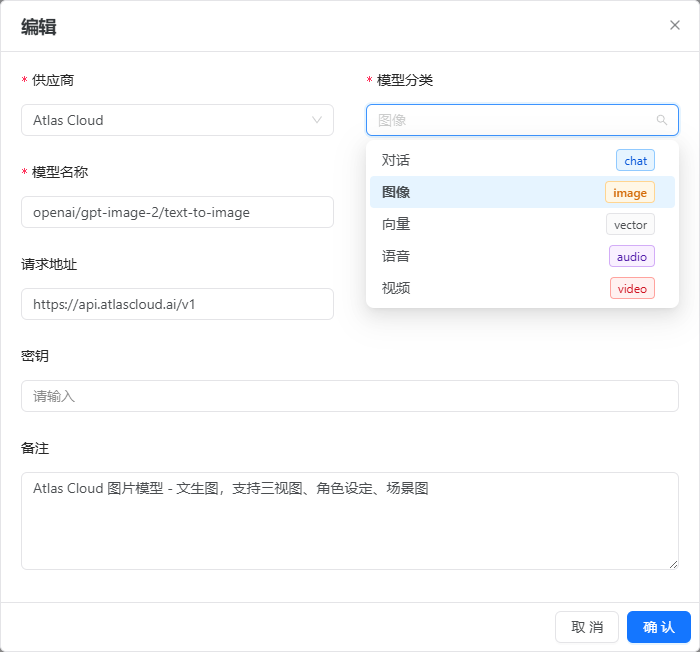
Labels can change; stored values must remain stable. Changing a chat model's category to image does not give it image-generation capability.
3.2 Configure an image model
Return to Chat Management → Model Management and edit an existing row or add one using the confirmed provider. This existing Atlas text-to-image configuration illustrates the fields:
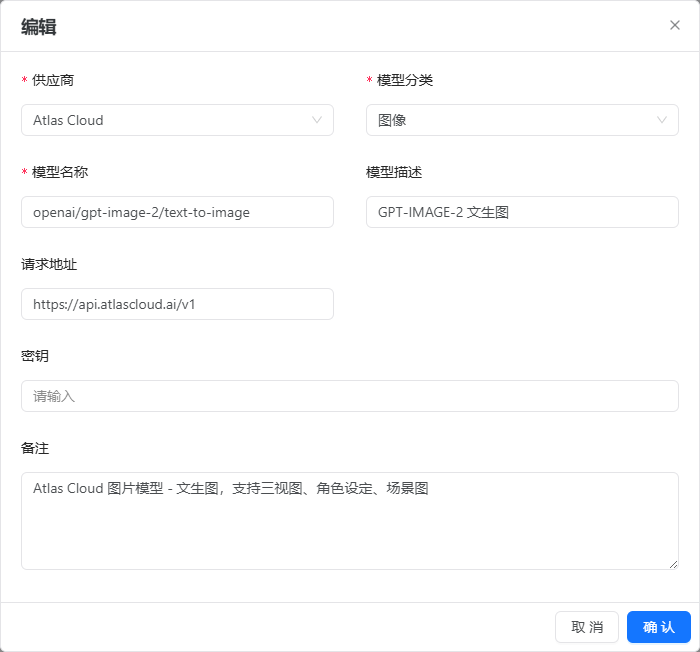
| Field | Screenshot value | How to fill it |
|---|---|---|
| Provider | Atlas Cloud | Enabled atlas provider. |
| Category | Image | Stored as image. |
| Model name | openai/gpt-image-2/text-to-image | Actual service model ID, also sent as request model. |
| Description | GPT-IMAGE-2 text-to-image | Display name; does not replace the API model name. |
| Request address | https://api.atlascloud.ai/v1 | Base URL; the adapter constructs the endpoint. |
| Key | Not returned in the edit form | Use the actual Atlas API Key for Atlas. |
| Notes | Model-purpose description | Maintenance text, not generation parameters. |
Selecting a regular provider copies its address into the model form. If the provider address changes later, check existing model addresses too. Enter the actual API Key and save, then verify provider, category, and model name in the list.
How endpoints are constructed
- OpenAI media uses
OpenAiMediaSupport.endpoint()for/v1/images/generations,/v1/audio/speech, and/v1/videos, avoiding duplicate/v1. - Atlas uses
AtlasMediaSupport.endpoint()and/api/v1. For example, prediction lookup converts the shown base URL tohttps://api.atlascloud.ai/api/v1/model/prediction/{id}. - Wanxiang uses the
ImageSynthesisSDK without using modelapiHostwhen building parameters. Another endpoint requires an SDK integration change.
3.3 Configure speech or video models
Use category Audio / audio and the provider's speech model ID. voice, format, and speed belong in generation requests, not model notes.
For video, use Video / video. The existing example uses bytedance/seedance-2.0/text-to-video:
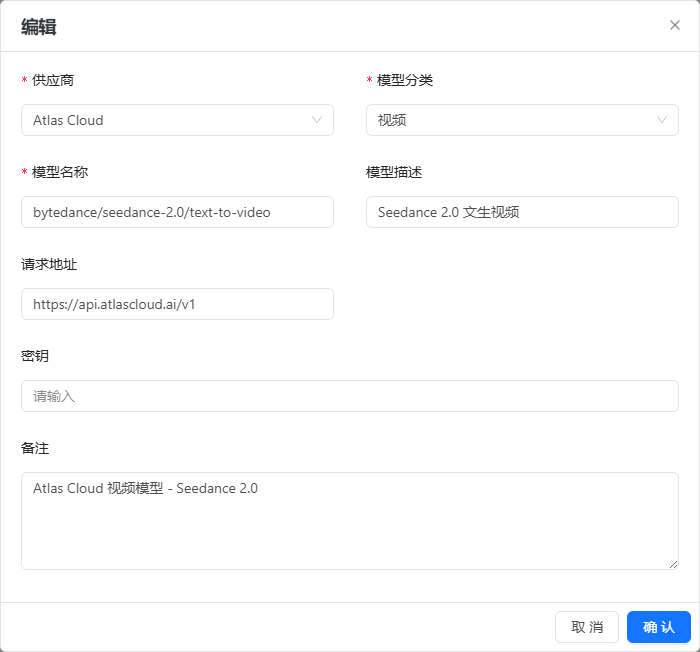
Each record has one category. Verify one media capability first to make address, parameter, and credential problems easier to isolate.
4. Generate and inspect media in the workspace
4.1 Open the workspace
Start the user frontend, using a separate port when the documentation site is running:
Set-Location D:\Project\github\ruoyi-web
pnpm install
$env:VITE_API_URL = 'http://127.0.0.1:6049'
pnpm run dev --host 127.0.0.1 --port 5180 --strictPort
Open http://localhost:5180/media, or select Media Workspace in the user app sidebar. Sign in when prompted; models load after login.
The Image generation, Speech synthesis, and Video generation tabs load image, audio, and video models respectively. After saving a model in the admin console, click Refresh models. Empty lists prompt administrators to check category and provider status.
The workspace collects parameters and displays tasks and results. The backend still supplies service addresses and keys. Configure provider credentials before generating.
4.2 Generate an image
- Select Image generation and a text-to-image model. Provider code and full model name are shown below the selector.
- Describe the subject, scene, and style in Prompt, or insert and edit the example.
- Expand More parameters for size and seed if needed; empty values use model defaults.
- Click Generate image and inspect the right-side status and result.
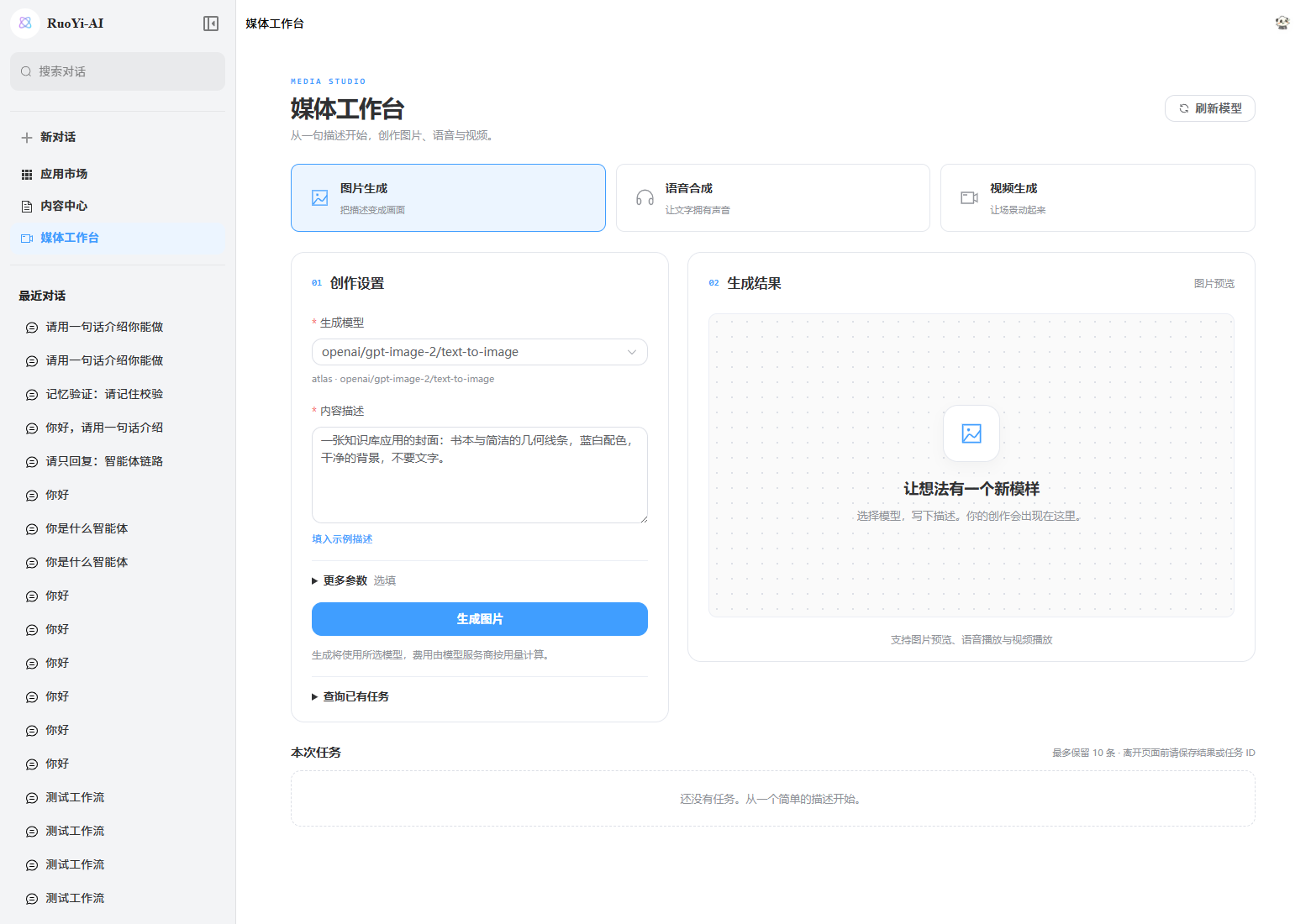
Options display model descriptions, falling back to names. This workspace supports text-to-image, without reference-image upload or editing. Choose a generation model even if editing models appear in the list.
4.3 Generate speech or video
Select Speech synthesis, choose a model, and enter the text to read. Under More parameters, optionally set voice, audio format, speed, and reading instructions, then click Generate speech.
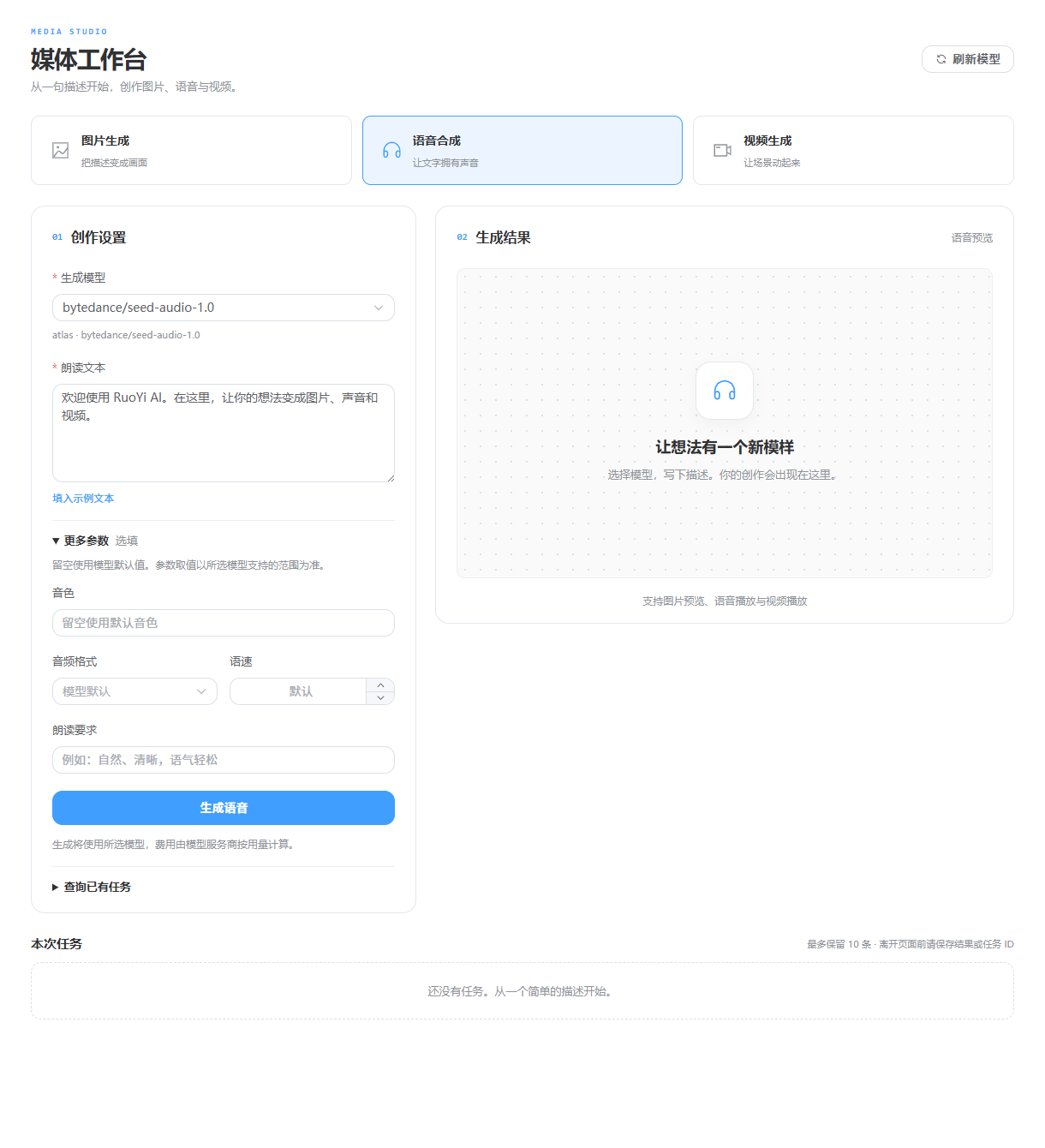
Supported voices and parameters vary. Begin with defaults, verify a successful request, then tune them.
Select Video generation, choose a text-to-video model, and describe the scene and camera movement. Optionally set size, duration, and quality, then click Generate video.
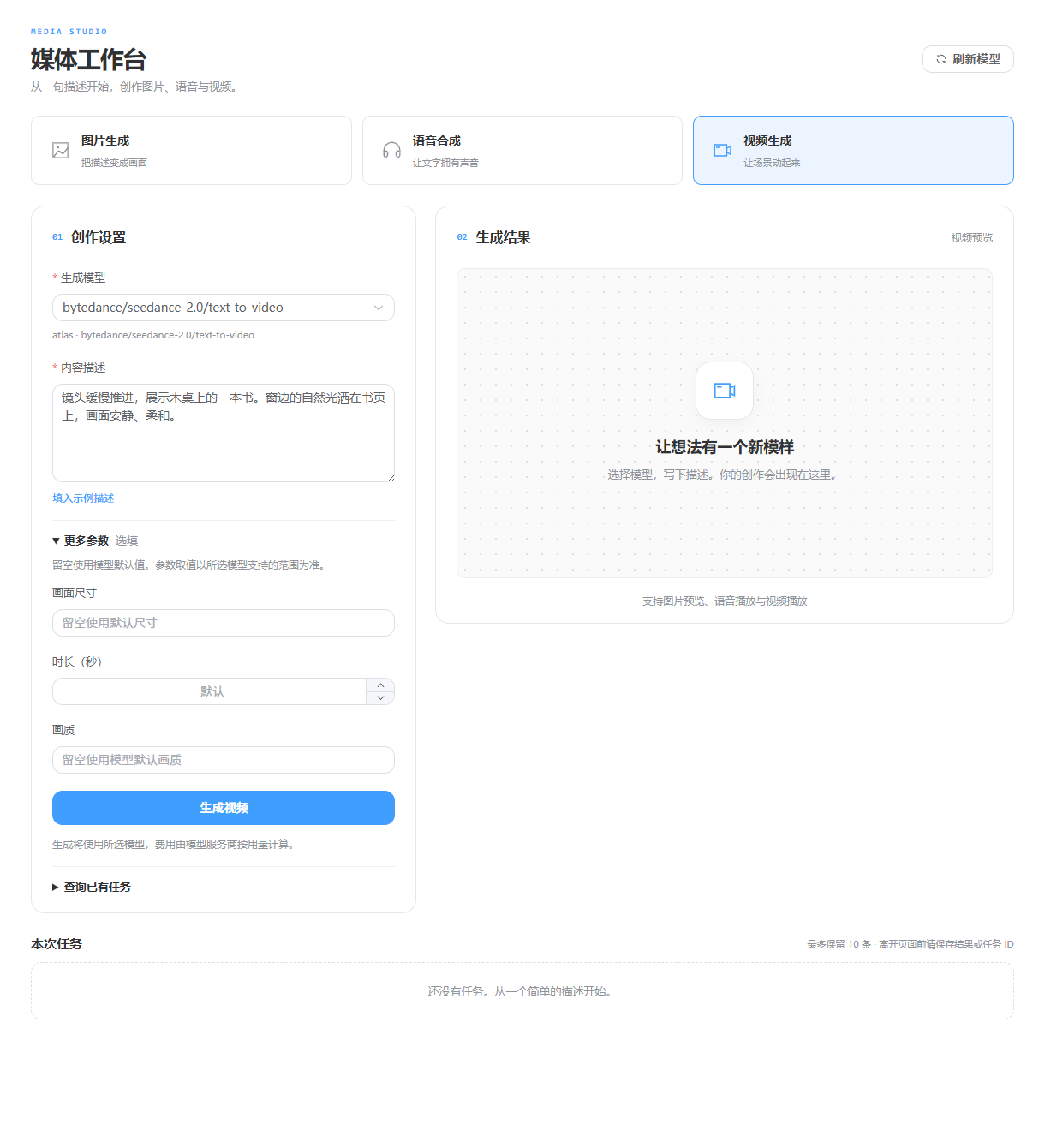
Changing media type reloads models and clears the form. Changing models clears optional parameters to avoid reusing incompatible options. Already-submitted tasks remain in the current page's task list.
4.4 Inspect results and task status
Synchronous resources appear immediately as images or audio/video players. Base64 results offer Save file; URL results offer Open resource.
When a task ID is returned, the workspace polls automatically:
- Waits 4 seconds after each query completes, with a 10-minute limit.
- Stops on completion or failure. An empty result without a usable resource is shown as incomplete.
- Pause polling stops client queries while the server task continues; Resume polling resumes later.
- Retains the task ID after query errors or timeout.
- Submits or polls one task at a time. Wait or pause polling before creating another.
Errors reflect actual responses. The local image request below returned backend code=500 and a generic system-error message; the model and error remained visible, with no generated image:
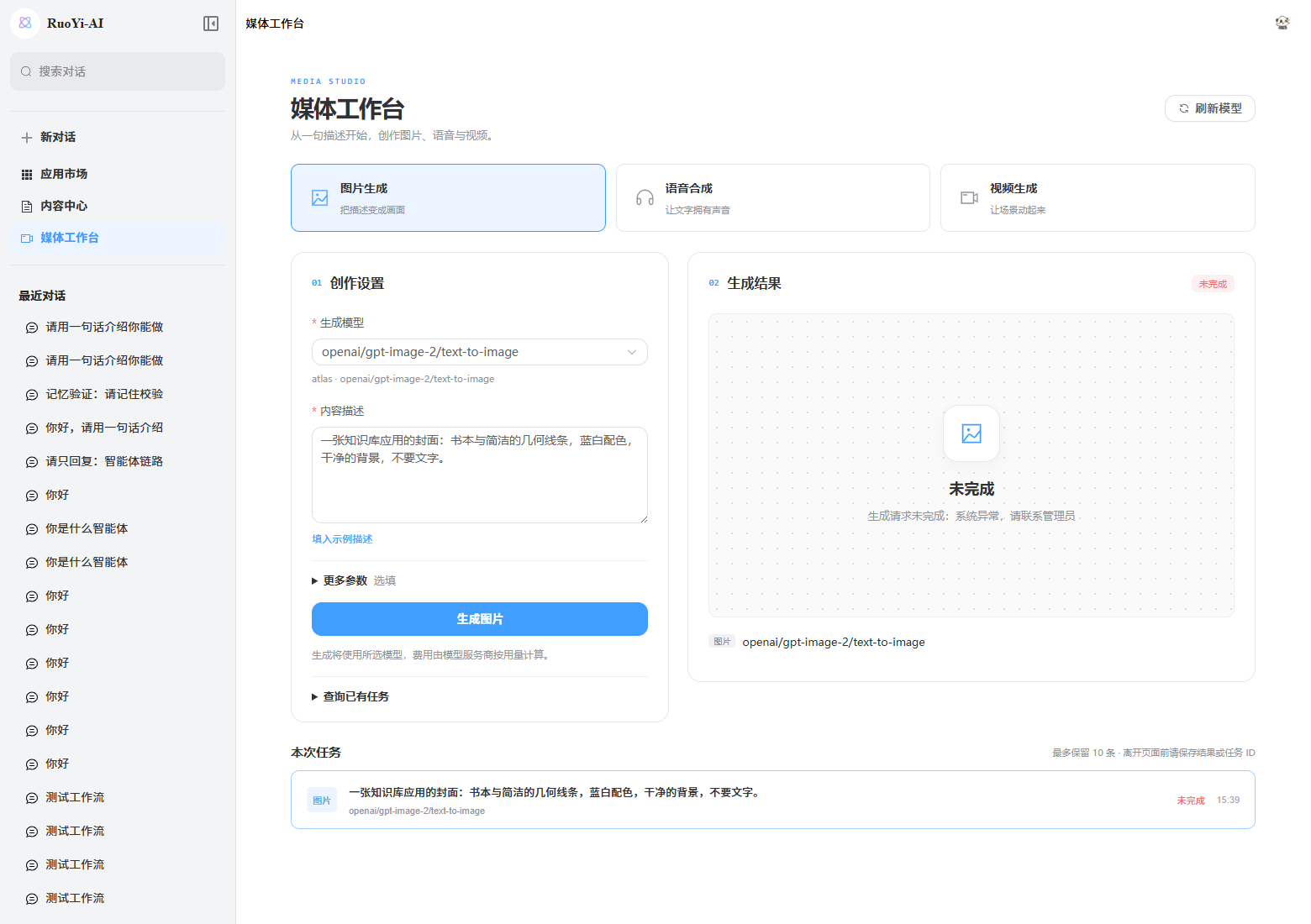
Atlas media credential integration is now available. Check credential readiness and server logs for generic errors instead of repeatedly retrying the same configuration.
4.5 Save a task ID and resume an existing task
Current tasks retains up to ten records in page memory. Selecting a record shows its result. Refreshing, leaving the page, or signing out clears records and stops polling.
Before leaving, save the result or Copy the task ID and note its model. To resume:
- Choose the original media type and model.
- Expand Query existing task and enter the ID.
- Click Query task; polling continues if the task is still running.
Atlas images and speech use Prediction lookup; videos use the generic video query endpoint. Providers without a lookup implementation have this entry disabled.
4.6 Frontend API integration
The route is /media, with entry component ruoyi-web/src/pages/media/index.vue:
| File | Responsibility |
|---|---|
components/MediaForm.vue | Models, media parameters, and existing-task queries. |
components/MediaPreview.vue | Results, errors, playback, saving, and copying IDs. |
components/MediaTasks.vue | Current-page task list and preview selection. |
useMediaWorkbench.ts | Model loading, submission, queries, timeouts, and navigation cleanup. |
utils.ts | Parameter checks, task states, and usable-resource validation. |
These reuse generateImage(), generateSpeech(), generateVideo(), getPrediction(), and getVideoResult() from src/api/media/index.ts. The request layer includes the login token and ClientID; actual results are in response data. For example:
const { data } = await generateImage({
  model: selectedModel.modelName,
  prompt: draft.prompt.trim(),
  size: draft.size.trim() || undefined,
  seed: draft.seed,
});
Task records retain model, provider, category, and ID so changing the form does not query a different model. Late responses after navigation or paused polling cannot overwrite a newer task.
Models come from GET /system/model/modelList?category=image, or audio / video. It requires system:model:list or coding:harness:use; omitting category defaults to chat. The workspace also checks provider media implementations and blocks unsupported submissions.
5. Test the APIs independently
5.1 Prepare application authentication
Media APIs require a RuoYi AI login. In browser developer tools, inspect a successful backend request and use its Authorization and Clientid headers in your local API client.
<ACCESS_TOKEN> below is the RuoYi AI login token; <CLIENT_ID> belongs to that login client. They differ from provider media keys, which the backend resolves for /media/* requests.
Requests first validate authentication, required fields, parameter ranges, and model category. Image prompts must not be empty, seeds must not be negative, and image requests require a model in category image.
HTTP 200 does not mean generation succeeded. Inspect the response code and read msg on failure. Consult server logs if only a generic message is returned.
The following requests show the public API format. Atlas generation requires provider and environment configuration, a verified model, and valid options.
5.2 Generate an image
Create this HTTP request in your API client:
POST http://127.0.0.1:6049/media/image
Authorization: Bearer <ACCESS_TOKEN>
Clientid: <CLIENT_ID>
Content-Type: application/json

{
  "model": "openai/gpt-image-2/text-to-image",
  "prompt": "一张用于知识库应用的封面,蓝紫色线条,白色背景"
}
model and prompt are required. Optional size must match the model and adapter: OpenAI's 1024x1024 and Wanxiang's 1280*1280 are not interchangeable. Optional integer seed ranges from 0 to 2147483647; the OpenAI image adapter ignores it for names containing gpt-image.
Response data may contain a synchronous url, b64Json, or directly previewable dataUrl. Atlas image requests are asynchronous and return task id and status for subsequent lookup.
/media/image has no reference-image field. It does not support image-to-image or editing and does not convert model notes into extra parameters.
5.3 Convert text to speech
Send this JSON to POST /media/speech with the same login headers:
{
  "model": "替换为已配置的语音模型名称",
  "input": "欢迎使用 RuoYi AI。"
}
model and input are required. voice, responseFormat, speed, and instructions are optional. Verify a minimal request first.
The OpenAI adapter defaults to voice=alloy and responseFormat=mp3, returning Base64 and dataUrl. Atlas audio is asynchronous. The bytedance/seed-audio-1.0 model outputs MP3 by default. Public speed and instructions fields are not currently mapped to Atlas parameters; voice is sent as references[].speaker, so OpenAI voice names are not interchangeable. The public DTO has no multi-speaker reference audio or sample-rate fields; parameters from internal business services cannot simply be copied here.
5.4 Create and query a video
Send to POST /media/video with the login headers:
{
  "model": "bytedance/seedance-2.0/text-to-video",
  "prompt": "镜头缓慢推进,展示桌面上的一本书,柔和自然光"
}
model and prompt are required; size, seconds, and quality must match the chosen model. Retain data.id and the model name for querying:
GET http://127.0.0.1:6049/media/video?model=<URL编码后的模型名称>&videoId=<任务ID>
Authorization: Bearer <ACCESS_TOKEN>
Clientid: <CLIENT_ID>
GET /media/video requires category video. OpenAI queries /videos/{videoId}; Atlas treats videoId as a prediction ID.
5.5 Handle asynchronous results
Atlas image, audio, and video tasks also support generic lookup:
GET http://127.0.0.1:6049/media/prediction?model=<URL编码后的Atlas模型名称>&predictionId=<任务ID>
Authorization: Bearer <ACCESS_TOKEN>
Clientid: <CLIENT_ID>
This directly calls Atlas and is only for Atlas models. Use the same model configuration, provider, and credentials as creation.
- Check the RuoYi response
codebefore readingdata. - Retain model, task ID, and status. Interpret states by provider; the backend passes them through, so do not assume completion is named
done. - Use an interval and timeout, stopping on success or failure. Atlas lookup converts missing or expired task
404responses tostatus=failed. - Confirm
dataUrlorurlis nonempty and accessible. Some adapter error branches return an empty result;code=200alone cannot mean completion.
See Atlas Predictions and the OpenAI Video object. Check third-party compatible services separately.
| Protocol | Continue polling | Success | Failure |
|---|---|---|---|
| Atlas Prediction | processing | completed | failed |
| OpenAI Videos | queued, in_progress | completed | failed |
The Atlas code also handles pending and recognizes succeeded in video result logs. Preserve unknown states for diagnosis and apply a timeout; do not assume success.
Response fields and compatibility notes
| Field | Use |
|---|---|
type, mimeType | Media type for rendering; also check the configured model category. |
url | Provider resource URL, subject to its permissions and expiry. |
dataUrl, b64Json | Base64 output; dataUrl can be a browser media element's src. |
id, status | Task identifier and provider state. |
lastFrameUrl | Possible Atlas video final frame; typed in the frontend but not shown separately in the basic workspace. |
rawResponse | Original provider response for server-side protocol diagnosis. |
Atlas lookup preserves image, audio, and video categories. Default MP3 audio uses audio/mpeg; WAV and OGG links use the matching MIME type. Missing audio tasks also retain their audio category and task ID.
The OpenAI video adapter only extracts url or data[0].url. The official Videos API also requires content download and conversion into a frontend-accessible resource. completed does not guarantee this adapter can obtain a playback URL.
5.6 Fetch previewable media content
Once an Atlas task completes, the workspace automatically calls:
GET http://127.0.0.1:6049/media/content?model=<URL-encoded Atlas model>&predictionId=<task ID>
Authorization: Bearer <ACCESS_TOKEN>
Clientid: <CLIENT_ID>
Success returns binary media with its actual Content-Type, Content-Disposition: inline, and Cache-Control: no-store, not an R JSON envelope. Errors use the standard project error response. The frontend fetches with login headers and creates a temporary Blob URL; tokens never enter the URL. Audio/video can play and seek once loaded. Save File uses the same loaded bytes.
Each resource is limited to 64 MiB and loaded into server/browser memory, without persistent storage. Only HTTPS on the default port is allowed for atlas-media.oss-us-west-1.aliyuncs.com and the video resource host ark-acg-ap-southeast-1.tos-ap-southeast-1.volces.com; redirects are refused. Other hosts, larger files, and expired upstream resources need separate support. Retry resource loading without paying for another generation task.
6. Where to extend the implementation
6.1 Current chat attachment behavior
The workspace generates media. Ordinary chat uses a separate attachment flow: sign in, open New conversation, click the paperclip and Upload file or image. Selecting local logo.png shows a preview:
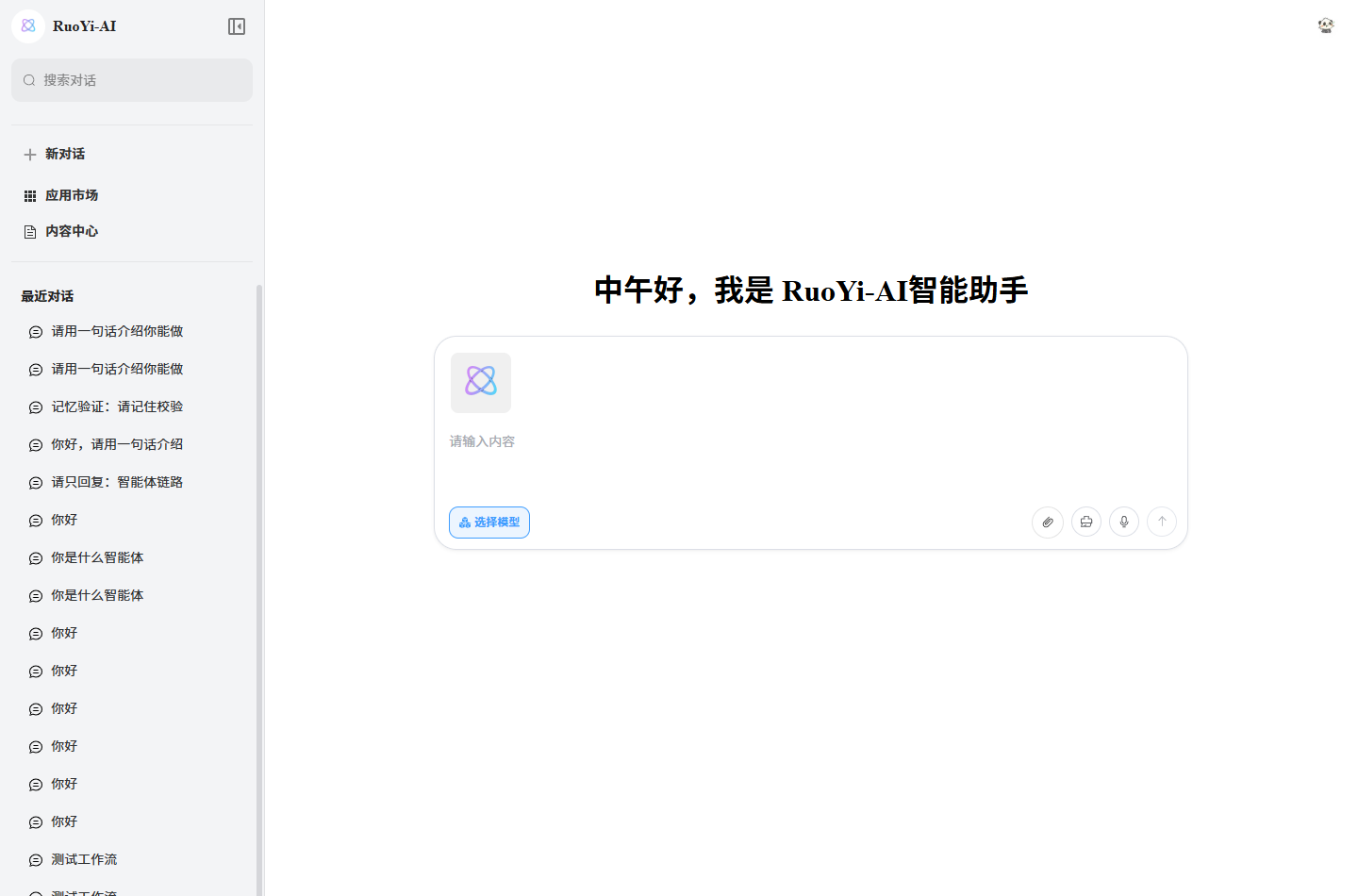
FilesSelect stores files in Pinia and creates previews with URL.createObjectURL(). Ordinary chat's startSSE does not include attachment content or URLs in /chat/send, so the preview does not enable visual question answering or OCR and does not call /media/image.
Image understanding needs upload or encoding, image fields in messages, backend image-message construction, and a vision-capable chat model. It is a separate flow from text-to-media generation.
6.2 Extend existing implementations
The image path in MediaGenerationController follows these steps:
ChatModelVo model = loadModel(request.getModel(), ModelType.IMAGE.getKey());
ImageContext context = ImageContext.builder()
    .chatModelVo(model)
    .prompt(request.getPrompt())
    .size(request.getSize())
    .seed(request.getSeed())
    .build();
var service = imageServiceFactory.getOriginalService(model.getProviderCode());
if ("atlas".equals(model.getProviderCode())) {
    return R.ok(service.startImageGeneration(context));
}
return R.ok(toImageResponse(service.generateImage(context)));
It looks up the model, checks its category, selects an implementation by provider, and converts the result. A new media provider needs options, a service implementation, and result parsing. Its client reads the API Key saved for the model.
| Area | Code location in ruoyi-ai |
|---|---|
| Public APIs and parameters | ruoyi-modules/ruoyi-chat/src/main/java/org/ruoyi/controller/chat/MediaGenerationController.java and that module's domain/bo/media/. |
| Provider implementations | That module's service/image/provider/, service/audio/provider/, service/video/provider/. |
| Endpoint construction and Atlas lookup | That module's service/media/. |
| Service selection | Three media factories under ruoyi-common/ruoyi-common-chat/src/main/java/org/ruoyi/common/chat/factory/. |
| Model API Key | Entered in ruoyi-admin Model Management and read by adapters through ChatModelVo.getApiKey(). |
For multimodal knowledge bases, AliBaiLianMultiEmbeddingProvider supports text, images, video, and combined inputs, but document ingestion does not call embedMultiModal yet. Media ingestion and retrieval require further work.
Coding Harness has its own image persistence and ImageContent construction. Use its session/run APIs for image context; this does not automatically enable images in ordinary chat.
7. Troubleshooting
| Symptom | First check |
|---|---|
| Provider missing | Enabled status and tenant; fresh Atlas/Wanxiang setups need static admin options. |
| Wrong or stale categories | chat_model_category labels, values, and cache; reopen the form. |
| Model save or authentication fails | Check the enabled provider, required fields, and the API Key saved in Model Management. |
| Model not found or generic exception | Exact name, category, enabled provider, and server logs. |
| Unauthenticated or forbidden RuoYi response | Login token, matching Clientid, and permissions. |
| Provider authentication failure | Confirm the request reached the provider, then check key, media access, and account status. |
Provider 404 | Adapter endpoint construction; expired Atlas task lookup becomes a failed state. |
| Task ID but no resource | Poll until completion, failure, or timeout, retaining error details. |
code=200 without media | Inspect data.status, url, dataUrl, and server exceptions. |
| Media models absent in chat or attachments ignored | Chat defaults to chat models and attachment previews only; use Media Workspace for generation. |
| Workspace models missing or fail to load | Category, provider status, model-list permission, and Refresh models. |
| Polling paused | Manual pause, query failure, unknown state, or the 10-minute limit; retain the ID and resume after diagnosis. |