
Model and external platform integration
RuoYi AI can connect to FastGPT, RAGFlow, and other platforms exposing OpenAI Chat Completions or Anthropic Messages compatible APIs. Dedicated adapters for Dify and Coze are also present, and their application Keys are configured directly in Model Management.
Supported platforms and connection methods
Find your platform, confirm its protocol, and follow the corresponding configuration steps:
| Platform / service | Method and current requirements | Instructions |
|---|---|---|
| FastGPT | OpenAI-compatible API through custom_api; an application API key and App ID select the application. | Prepare the application → Add a model. |
| RAGFlow | Chat assistant's OpenAI-compatible API through custom_api; the URL includes the Chat ID. | RAGFlow setup. |
| Dify | Dify App API, provider code dify; enter the application API Key directly. | Dify setup. |
| Coze | Coze Bot API, provider code coze; enter the access token directly. | Coze setup. |
| Other OpenAI-compatible platforms | custom_api, with the service's URL, model name, and credentials; verify compatibility. | Choose a protocol → Add a model. |
| Anthropic-compatible services | custom_anthropic for the Messages API; verify compatibility. | Anthropic-compatible setup. |
An external application becomes a model option in the user app. Its knowledge bases, prompts, and orchestration remain on the external platform; RuoYi AI provides the chat entry point, selection, and local session records. For direct model services such as DeepSeek or PPIO, see Model management.
This guide explains shared provider and model settings, uses FastGPT for the complete flow, and then covers differences for RAGFlow, Anthropic-compatible services, Dify, and Coze. Start at section 1 for a new setup, or use the links above if your environment is already running.
Screenshots show the locally running admin console and user app. The FastGPT form uses an example address and was not saved; the user screenshot shows the selector for existing models. Verify actual external calls with your own application and credentials in section 5.
1. Start the admin console and locate the settings
Start the backend using Local installation, then run in the admin frontend repository:
Set-Location D:\Project\github\ruoyi-admin
pnpm install
pnpm run dev:antd
Replace the directory with your checkout; skip pnpm install if dependencies are installed. Open the terminal's URL, normally http://localhost:5666, sign in, and expand Chat Management.
Provider Management selects the protocol implementation. Model Management supplies the application's address, model name, and API Key. Both must use the same backend; the admin development proxy defaults to http://127.0.0.1:6039.
If you just upgraded custom-protocol support, rebuild and restart the updated backend and admin frontend first.
2. Select a protocol in Provider Management
2.1 Identify the platform's API
Open Chat Management → Provider Management. Reuse an existing provider when possible; otherwise click Add.
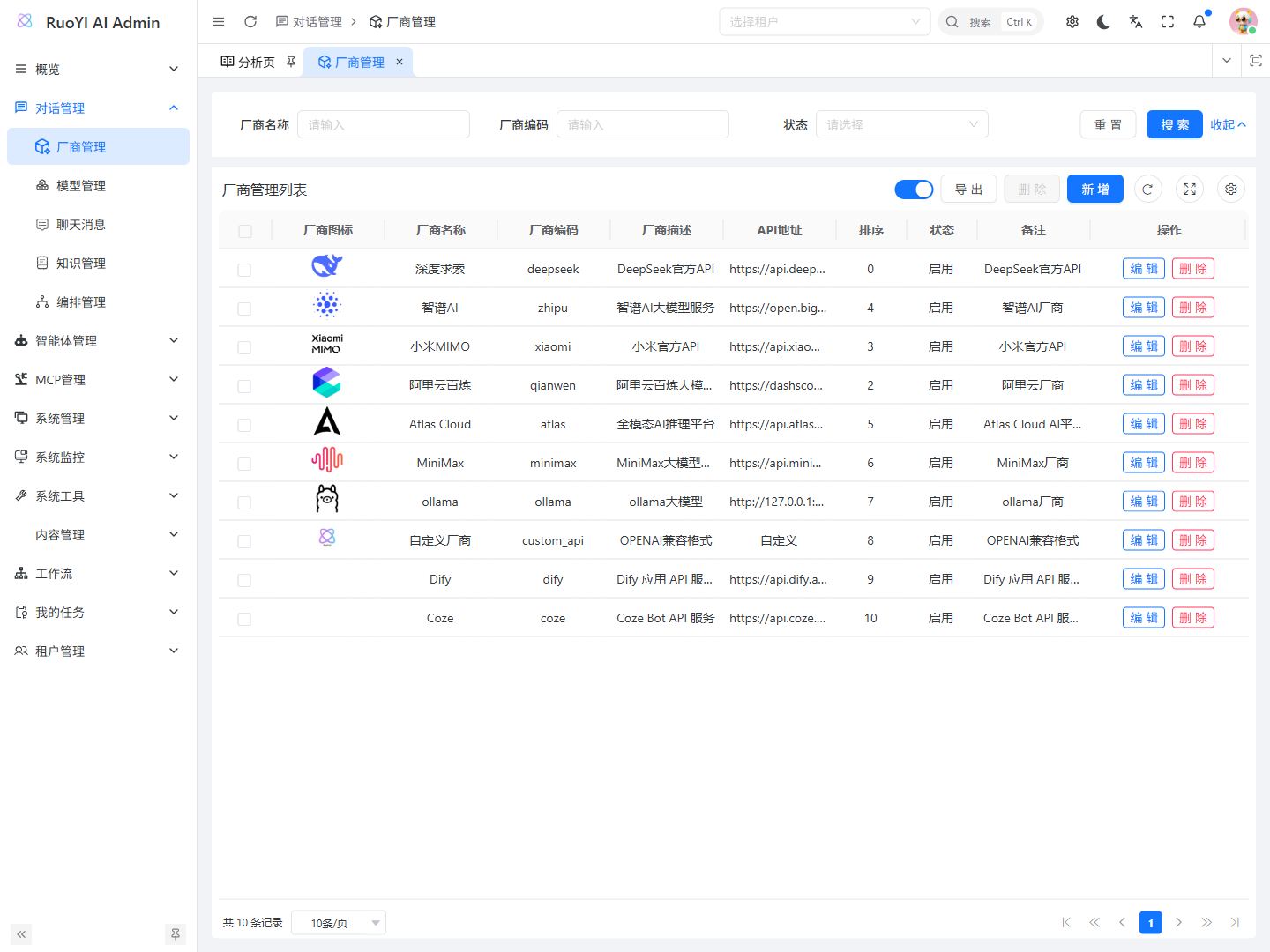
The provider name identifies the service; its code selects the backend implementation. FastGPT exposes an OpenAI-compatible API, so use custom_api. You do not need a new code just to display “FastGPT”; name the application in the model description instead.
| API exposed by the platform | Provider code | Backend request |
|---|---|---|
| OpenAI Chat Completions compatible, including FastGPT and RAGFlow | Custom OpenAI, custom_api | Bearer authentication, /chat/completions. |
| Anthropic Messages compatible | Custom Anthropic, custom_anthropic | x-api-key authentication, /messages. |
| Dify App API / Coze Bot API | Dedicated adapters, section 6 | Select the native provider and configure its Key in Model Management. |
Existing data
Older custom_api records may be named “Custom Provider,” as in the screenshot. Check the code rather than creating a duplicate. Existing Dify or Coze rows also do not prove calls work; read the current requirements first.
2.2 Add or check the provider
Select the protocol from Provider code in the Add form. Search for custom to find the two custom options.
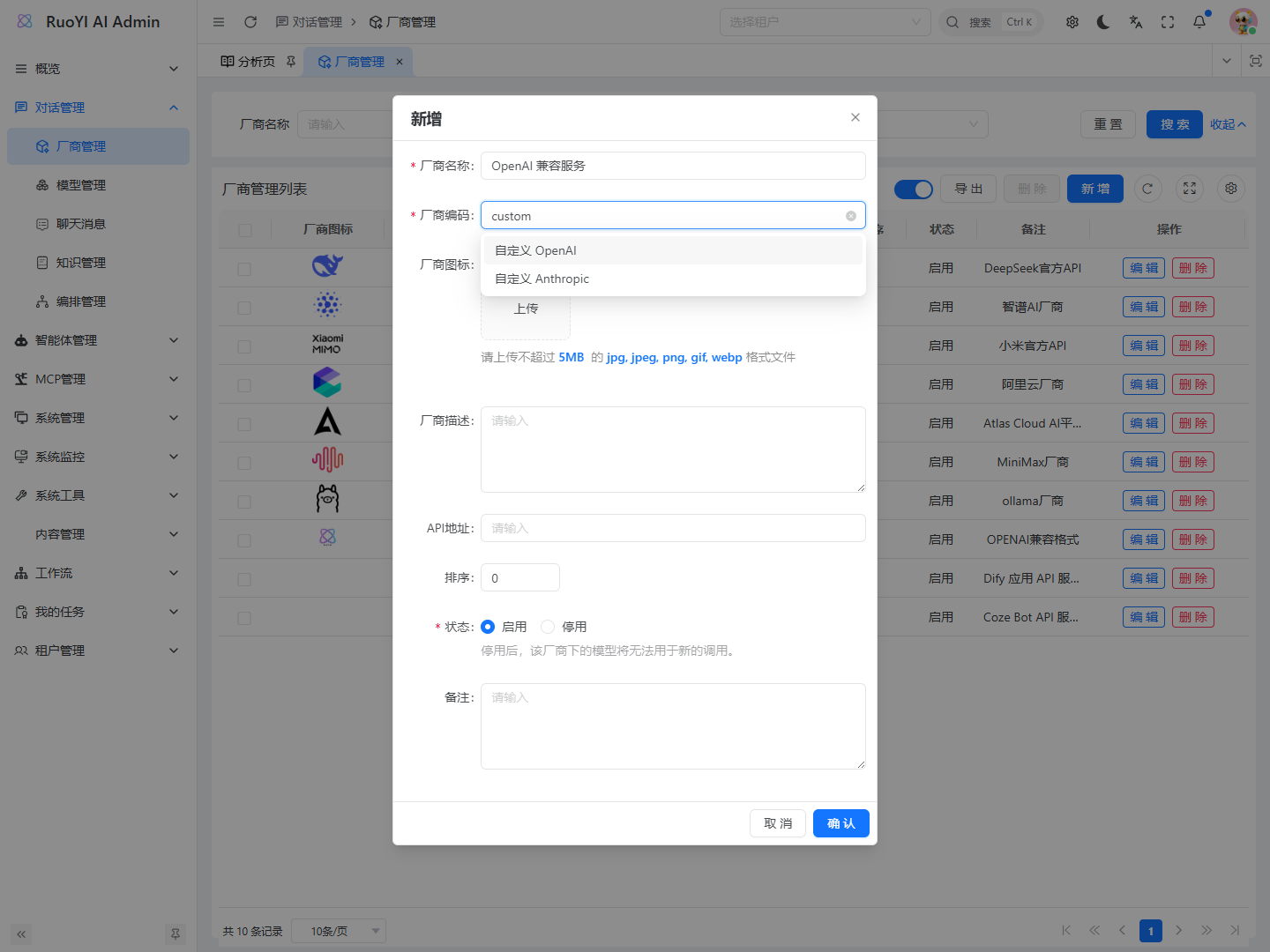
For an OpenAI-compatible service:
| Field | Value |
|---|---|
| Provider name | For example, “OpenAI-compatible service”; shown in model forms. |
| Provider code | Custom OpenAI, custom_api. |
| API address | May be blank; custom protocols use the address configured separately on each model. |
| Sort order | As needed; smaller numbers appear first. |
| Status | Enabled. Disabling it prevents new model calls. |
| Description, icon, notes | Optional. |
Save and check the code and status. A tenant can have only one undeleted provider with a given code. If the code is duplicated, reuse the existing record.
Multiple OpenAI-compatible platforms can share this provider. For example, FastGPT and RAGFlow both use custom_api but have separate model URLs and API Keys. Selecting a custom provider clears the request address so you can enter it explicitly.
How the provider selects implementation code
For a normal chat request, ChatServiceFacade looks up the configuration by model name, then gets the implementation from ChatServiceFactory using providerCode:
ChatModelVo model = chatModelService.selectModelByName(chatRequest.getModel());
AbstractChatService service =
    chatServiceFactory.getOriginalService(model.getProviderCode());
custom_api maps to CustomApiServiceImpl; custom_anthropic maps to CustomAnthropicServiceImpl. Both support complete and streaming responses. A new database row only adds configuration; it does not create a protocol adapter.
Continue with model setup if an existing protocol is sufficient. For a dedicated adapter, see section 8.
3. Prepare the FastGPT application and backend credentials
3.1 Obtain application details
Configure the application in FastGPT, verify it answers in the platform's test page, and publish the version you want to expose. Prepare:
| Detail | Purpose |
|---|---|
| App ID | Identifies the FastGPT application; available from the application-details URL. |
| Authorized API key | Authenticates backend requests to that application. |
| Chat endpoint | For example, https://fastgpt.example.com/api/v1/chat/completions; use your actual HTTPS service. |
FastGPT accepts a combined <API_KEY>-<APP_ID> credential so a generic OpenAI client does not need an additional appId in the body. The application workflow selects its actual model; you can name the RuoYi AI configuration fastgpt-app. See the FastGPT chat API.
3.2 Enter the address and Key in Model Management
In ruoyi-admin, set the model address to your FastGPT base URL and enter <API_KEY>-<APP_ID> directly as the Key. No backend environment variables or restart are required.
3.3 Verify the platform API independently
Make one call from the backend host or container network using the platform's API instructions. Confirm publication, permissions, and connectivity before checking RuoYi AI settings.
Check FastGPT streaming with curl
This example uses Bash, WSL, or Git Bash. Set CUSTOM_OPENAI_FASTGPT_BASE_URL and CUSTOM_OPENAI_FASTGPT_API_KEY in that terminal first:
curl --no-buffer --fail-with-body \
  "${CUSTOM_OPENAI_FASTGPT_BASE_URL%/}/chat/completions" \
  -H "Authorization: Bearer ${CUSTOM_OPENAI_FASTGPT_API_KEY}" \
  -H "Content-Type: application/json" \
  -d '{"model":"fastgpt-app","stream":true,"messages":[{"role":"user","content":"你好,请介绍这个应用的用途。"}]}'
Expect a sequence of data: events containing answer fragments and a final event. Change stream to false and check for an answer in choices[0].message.content too.
If appId is reported missing, check the combined credential. A platform version that requires appId in JSON, or an application requiring extra variables, needs a dedicated adapter extension.
4. Add the platform application in Model Management
4.1 Check the Chat category
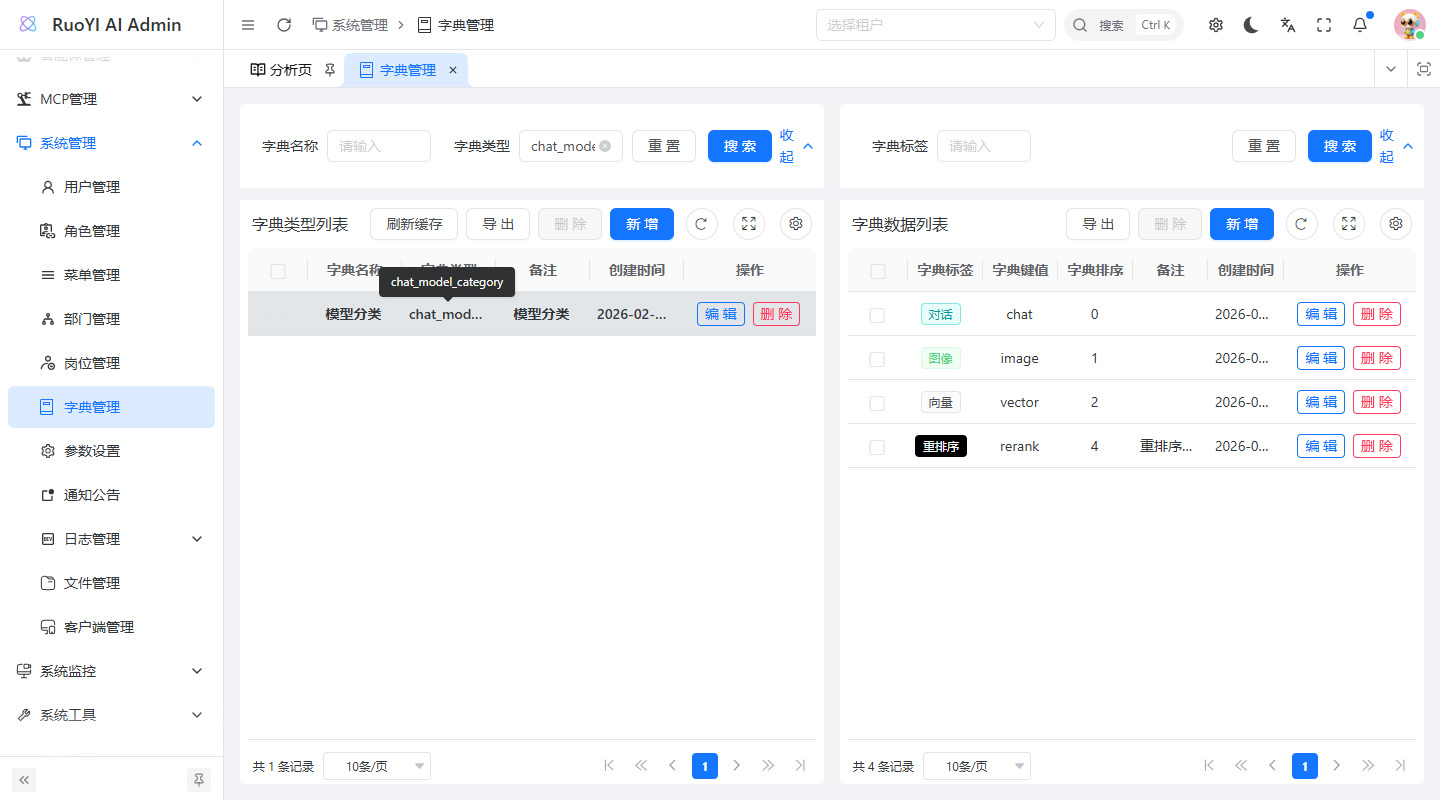
Open Chat Management → Model Management → Add and check for Chat under Model category. This dictionary entry must have value chat.
If missing, open System Management → Dictionary Management, find Model Category (chat_model_category), and add Chat / chat. For existing entries, check the label and value. Refresh the dictionary cache and reopen the model form. See Model category dictionary.
Search dictionary types for chat_model_category, select it, and inspect its data on the right.
4.2 Choose the provider and enter connection details
Select the provider configured in section 2, then fill in:
| Model field | FastGPT example | Notes |
|---|---|---|
| Provider | Custom Provider, or your chosen provider name | Must map to custom_api; the form should show “OpenAI Chat Completions.” |
| Category | Chat | Stored as chat. |
| Model name | fastgpt-app | Identifies the record and is sent as model. Avoid duplicate names within the tenant. |
| Description | FastGPT Knowledge Assistant | Preferred display name in the user app. |
| Request address | https://fastgpt.example.com/api/v1 | Use your service URL. |
| Key | <API_KEY>-<APP_ID> | Enter the actual combined value. |
| Notes | Optional | Describe the application's purpose. |
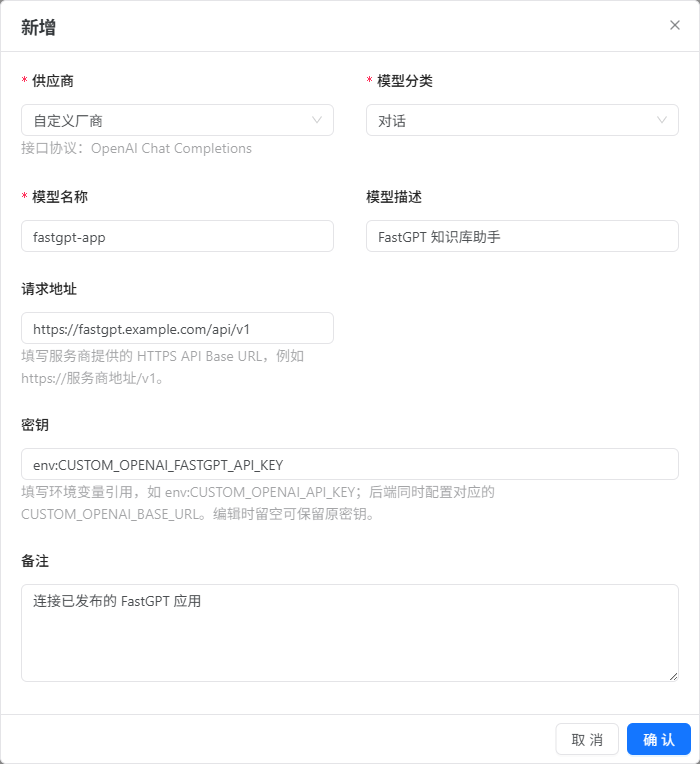
The example-domain form shown here was not submitted. Replace the address and enter the actual application Key before saving.
The request address is an API Base URL. The OpenAI client appends /chat/completions, producing:
https://fastgpt.example.com/api/v1/chat/completionsCustom protocols also accept the full matching endpoint; the backend removes its suffix before passing it to the client. A base URL is easier to inspect. Do not enter the platform's web-console URL.
4.3 Check the saved model
After saving, confirm fastgpt-app appears with the correct provider and Chat category. Saving confirms validation passed; you must still send a message.
Confirm the saved address and application Key. When editing, leave the Key empty to retain its existing value or enter a new Key to replace it.
4.4 Connect RAGFlow
Prepare and test a RAGFlow chat assistant, obtain its Chat ID and API key, and use the same OpenAI-compatible configuration entry point:
| Setting | RAGFlow value |
|---|---|
| Provider code | custom_api; reuse the same custom OpenAI provider. |
| Category | Chat (chat). |
| Model name | A valid name from the deployed version's API documentation. |
| Request address | https://ragflow.example.com/api/v1/openai/<CHAT_ID>. |
| Model key | Actual service API Key. |
Replace the domain and <CHAT_ID>, enter the actual Key in Model Management, and save. The final path is /api/v1/openai/<CHAT_ID>/chat/completions; do not retain an extra trailing /chat in this project's base URL. Follow the API documentation shipped with your deployed version; see RAGFlow OpenAI-compatible API. Verify through section 5.
4.5 Connect an Anthropic-compatible service
Confirm Messages compatibility and obtain a model ID, URL, and key. Create or enable custom_anthropic, then select it in the model form. The protocol hint should read “Anthropic Messages.”
| Setting | Value |
|---|---|
| Provider code | custom_anthropic. |
| Category | Chat (chat). |
| Model name | The service's published model ID. |
| Request address | For example, https://gateway.example.com/v1; use the actual base URL. |
| Model key | Actual service API Key. |
Enter the actual Key in Model Management and save. The Anthropic client sends x-api-key and a version header; this example calls /v1/messages. An OpenAI /chat/completions URL is not interchangeable. See Custom provider protocols for curl examples and section 5 for user-app checks.
Both custom protocols support HTTP or HTTPS addresses. Platforms using one protocol share its provider row but configure separate model addresses. Disabling that provider affects all its models.
5. Select the model and chat in the user app
5.1 Start and sign in
Keep the backend running and start ruoyi-web in another terminal:
Set-Location D:\Project\github\ruoyi-web
pnpm install
pnpm run dev --port 5180
Open http://localhost:5180/chat and sign in to the same tenant as the configured model. Port 5180 avoids the documentation site's 5173; check the terminal's actual address if ports are occupied. VITE_API_URL must point to the same backend as the admin console.
5.2 Select the platform application
- Click New conversation.
- Open the model button below the input. If an agent or workflow is selected, choose Switch to model first.
- Select FastGPT Knowledge Assistant and check the name below the input.
- Send a question you already verified in FastGPT's own test page.
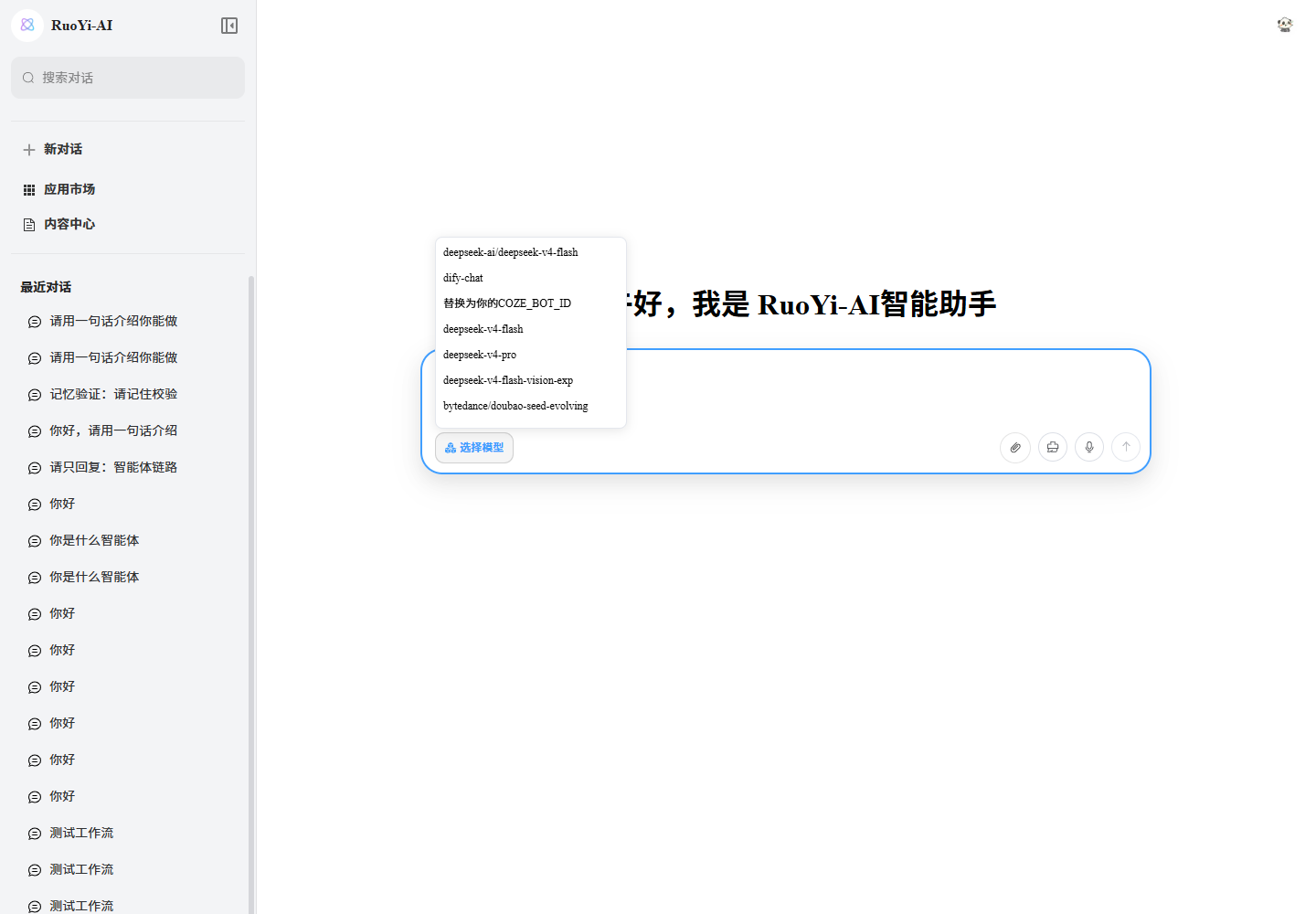
The screenshot shows existing local models; the unsaved FastGPT example is absent. Reopen the selector after saving your configuration. Model descriptions are displayed first, falling back to model names when empty.
5.3 Verify the complete answer and session
Start with ordinary model chat:
| Action | Expected result |
|---|---|
| Send a short question | Fragments appear and the answer finishes normally. |
| Ask a follow-up | The answer uses this session's context. |
| Refresh and reopen the session | Completed exchanges remain available. |
| Check platform logs, if available | A matching application call is recorded. |
Developers can inspect POST /chat/send in browser Network. Streaming should use text/event-stream with answer fragments and a completion signal. HTTP 200 or a created session alone does not prove success. Verify the answer and check Troubleshooting for error events or empty output.
Then test use in agents or workflows. Verify ChatModel separately for complete responses, and confirm the platform supports tool calls or structured output when your use case requires them.
How frontend selection reaches the backend
ModelSelect calls GET /system/model/modelList, defaulting to category chat. useModelStore holds the selection; sending a message puts modelName into model:
{
  "model": "fastgpt-app",
  "content": "你好,请介绍这个应用的用途。"
}
The actual request also includes a session ID and other fields. The backend reads providerCode, apiHost, and the API Key, then calls the matching client. Third-party API keys are not configured in the user app.
6. Current Dify and Coze integration
Dify and Coze use dedicated adapters. Enable the provider and enter the application Key or access token directly in Model Management.
6.1 Dify
- Create and publish a chat application, generate its App API key, obtain the service API URL, and verify it through Dify's API.
- Enable the
difyprovider. Set the model address tohttps://api.dify.ai/v1or your self-hosted API URL, choose a local model name, and enter the App API Key directly. - Save the model, select it in the user app, and verify answers, follow-ups, and saved sessions through section 5. See Dify API getting started.
The adapter combines the current message and history into query, with inputs fixed to an empty object. It parses Dify streaming events and uses blocking mode for complete responses. Applications requiring custom inputs need field mapping. message_replace changes final saved content but cannot replace fragments already sent to the frontend.
6.2 Coze
- Publish the Bot as an API service, obtain its Bot ID and a token with chat permission, and verify the native API.
- Enable the
cozeprovider and enter its access token directly as the model Key. Use the Bot ID as the model name and the API host for the same region. - Save the model and follow section 5. See Coze SDK getting started.
CozeChatServiceImpl uses the model name as botID, passes RuoYi AI history, and sets autoSaveHistory=false. Complete responses are also assembled by consuming Coze streaming events.
6.3 Shared requirements
Both adapters use the Key saved in Model Management. Different models can connect different applications or Bots with their own credentials.
Do not pass Dify /chat-messages or Coze /v3/chat URLs directly to custom_api. If a gateway converts protocols, verify its OpenAI or Anthropic compatibility first, then use the custom-protocol setup above.
7. Troubleshoot the step that fails
| Symptom | Next check |
|---|---|
| Provider missing from the model form | Confirm it exists and is enabled in the same tenant; reopen the form. |
| Chat category missing | Check chat in chat_model_category, refresh the dictionary cache and page. |
| 401 / 403 | Check key, permission, region, and application authorization; for FastGPT, also check the key/App ID combination. |
| 404 | Inspect the final path: usually /api/v1/chat/completions for FastGPT; RAGFlow also includes Chat ID. |
| Model missing in the user app | Check tenant, chat category, provider status, and reload the selector. |
| Session exists without an answer | Inspect /chat/send content and backend logs; call the platform independently to separate configuration, authentication, and parsing issues. |
| Answer appears all at once | Check real streaming support and reverse-proxy SSE buffering. |
| Chat works but agents or workflows fail | Verify complete responses, tools, structured output, and other required capabilities. |
8. Extend a platform with dedicated fields
Generic protocols cover standard chat using an address, model name, and standard authentication. Workflow variables, extra headers, or custom events require an adapter. See the PPIO example, then:
- Define a unique code in
ChatModeType, implementAbstractChatService, and register it with@Service. Return the same code fromgetProviderName()so the factory discovers it. - Implement
buildStreamingChatModel()andbuildChatModel(), mapping request fields, authentication, complete responses, and stream events. - Read the API Key from the model configuration with
ChatModelVo.getApiKey()and pass it to the client. - Add the provider to
apps/web-antd/src/views/chat/provider/options.ts. Extend model forms, backend fields, and persistence for custom parameters as needed. - Test normal answers, authentication failures, empty output, timeouts, and interrupted streams; rebuild and restart.
- Complete this guide's provider-to-model-to-user-chat flow, then test agents or workflows.
Adapters are under ruoyi-modules/ruoyi-chat/src/main/java/org/ruoyi/service/chat/impl/provider/.